Installing OpendTect on Mac OS X
OpendTect Pro and OpendTect Pro + Plugins (the commercial products) or OpendTect (the free version) together with Python packages, offline OpendTect and dGB Plugins documentation and Developer Tools can be installed via the OpendTect Installation Manager (OpendTect_Installer_mac.dmg) or via an offline package.
Security setting
Please do the following before installation:
- Click on the 'Apple' button (top left), go to:
- System Preferences > Security & Privacy > General Tab
- In case the option is there then toggle on Allow apps to be installed from App Store and identified developers, this may ask for admin credentials.
- Keep this window open when starting to install OpendTect. When you start the installer for the first time you might get the error message: "OpendTect Installer" can't be opened because the identity of the developer cannot be confirmed. or the error message "OpendTect Installer" can't be opened because Apple cannot check it for malicious software.
At System Preferences > Security & Privacy > General Tab there should be a message like "OpendTect Installer" was blocked from opening because the identity of the developer" cannot be confirmed. or "OpendTect Installer" was blocked from use because it is not from an identified developer. Click the lock icon to make changes and then click the Open Anyway button.
Figure: Set Security setting to App Store and identified developers and Open OpendTect Installer anyway - Once the installation is finished, and assuming you made a change to the security setting then you may change the security back.
Please note that in order to install OpendTect into the Applications folder the user that installs OpendTect should be allowed to administer this computer. You can check whether this option is toggled on via Users & Groups.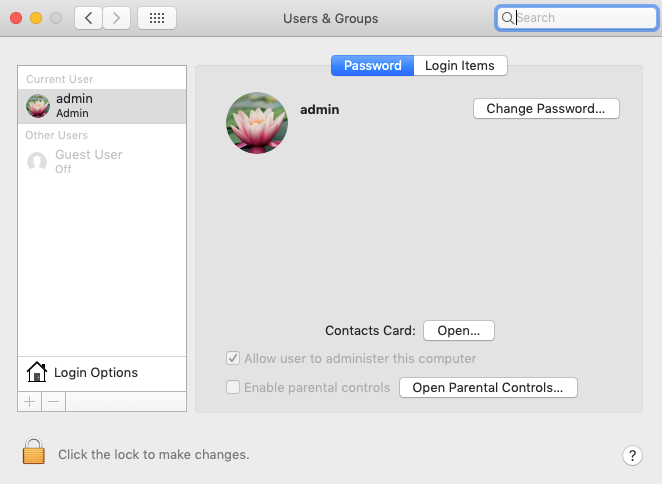
Figure: Find out whether user is allowed to write into Applications folder via Users & Groups
Installation via Installation Manager
- The Installation Manager is available for download via the appropriate platform link on the download page of the dGB website.
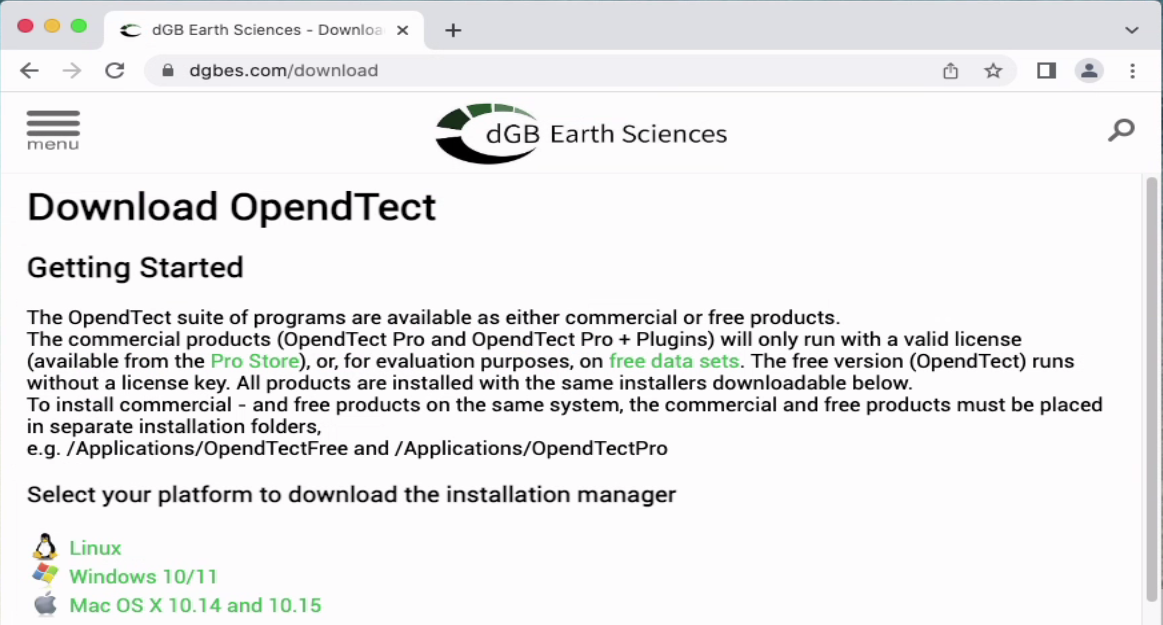
Figure: OpendTect download page - Run the .dmg file via Finder.
- Then start the OpendTect Installer.
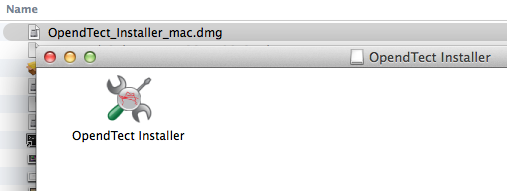
Figure: Start the OpendTect Installer by opening the .dmg file - In case you get a window with error message: "OpendTect Installer" can't be opened because the identity of the developer cannot be confirmed. or "OpendTect Installer" can't be opened because Apple cannot check it for malicious software then please follow the Security settings section in the top of this chapter to allow the opening of the OpendTect Installer.
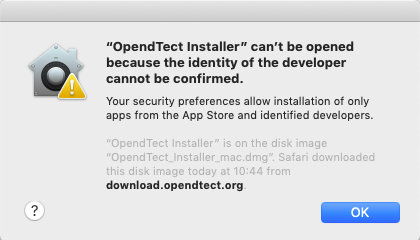
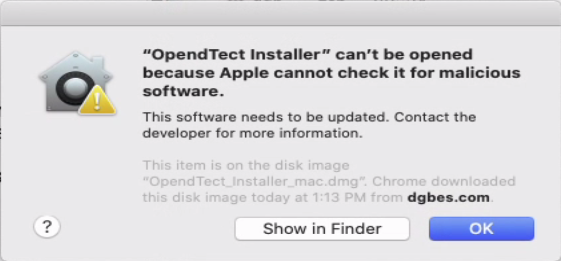
Figure: Error messages explaining that the OpendTect Installer can't be opened - The Installation Manager is a wizard to install/update the existing OpendTect (Latest / Previous) releases. The release type field is used to select the release that is needed to be installed/updated. The installer gives you the choices as seen below:
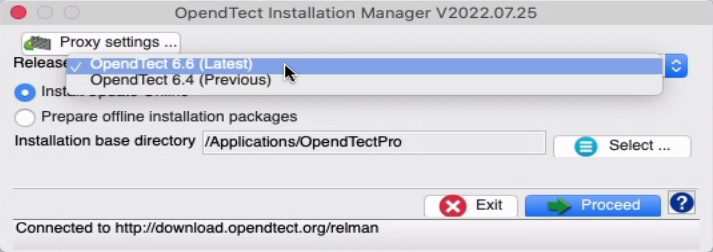
Figure: OpendTect Installation Manager - If it is a fresh installation then you may keep the proposed installation base directory or choose your own. If it is an update then select its installation base directory. To install commercial - and free products on the same system, the commercial and free products must be placed in separate installation folders, e.g. /Applications/OpendTectFree and /Applications/OpendTectPro. Now click Proceed.
- Select the package type of OpendTect you want to install. Please note that this window will only popup when installing a fresh OpendTect or OpendTect Pro installation.
Option OpendTect Pro will automatically select packages OpendTect Pro and Miniconda3. OpendTect Pro is the extended version of OpendTect.
Option OpendTect Commercial will select all packages.
Option OpendTect Free will automatically select OpendTect and Miniconda3. OpendTect is a free open source seismic interpretation system and software development platform.
Documentation and Development Tools packages are not automatically selected. It is possible to add packages at a later time.
To read more about OpendTect licensing, please refer to our webpage of licensing types.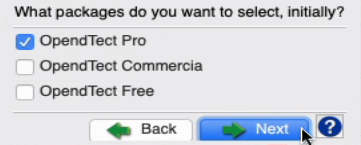
Figure: OpendTect Installer Package Selection Window - The OpendTect Installation Manager identifies the platform on which it is running. This information is then anonymized prior to it being sent to OpendTect. We use this anonymous data solely for the purpose of getting a picture of OpendTect usage and thus improving our support capabilities.|
- The next window of the wizard is the OpendTect Package Manager. Multiple items can be toggled on or off by checking the boxes. Optionally, the relevant package combination could also be selected from the top list box.
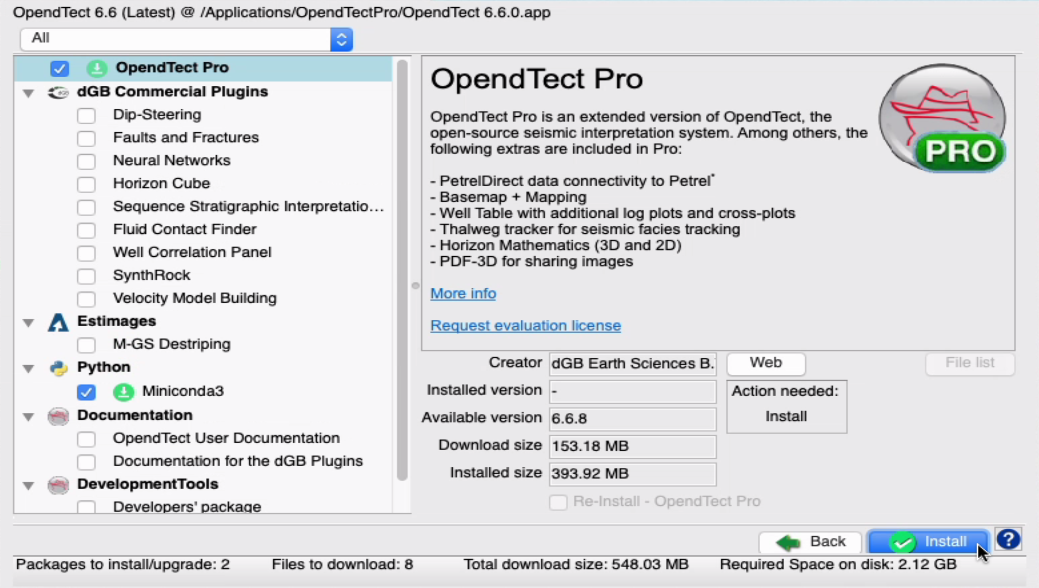
Figure: OpendTect Package Manager - The installation manager will automatically recognize the previously installed version at the selected path and will prompt it in the Installed version field.
To read more about a particular item in the list, select the item by clicking on it and
read the description on to the right panel.
- After selecting the packages for installation click on Proceed to start the installation.
- You may get a window with error message You do not have write permission in /Applications/OpendTect. This means that the current user has no administrative rights to install into the Applications folder. The solution is to either give the current user administrative rights or to install into a folder where the user is allowed to write files, like e.g. the users Documents/OpendTect folder.
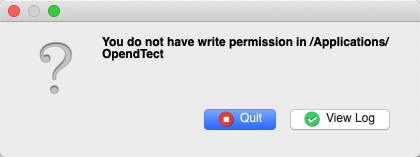
Figure: No write permissions in /Applications/OpendTect - You will first get a window that downloads the files from the download server. After downloading the packages they will be unpacked to the installation path.
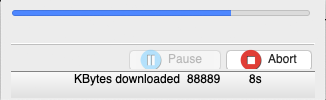
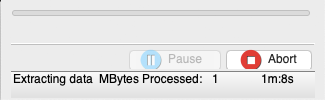
Figure: Example of downloading files and archive unpacker windows - If, for any reason, you should choose to abort the installation mid-download, you
will see the following window appear:
This gives you various options, including increasing the time-out from its default setting, changing the download server or changing the Proxy settings. - The installation will finish with giving an overview of the installed packages. Here is an overview for the OpendTect Commercial installation:
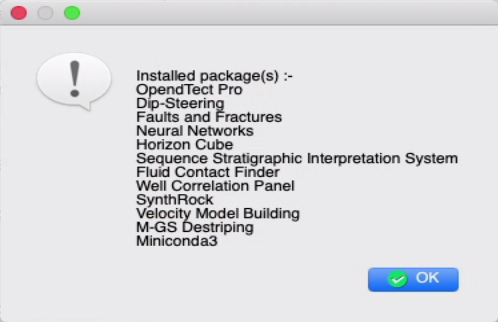
Figure: Overview of installed packages - To start OpendTect open it with Finder: Applications > OpendTectPro > OpendTect 6.6.0