Installing demo/node-locked licenses
Under Utilities > Installation > Licenses you will see two sets of options, differing per platform:
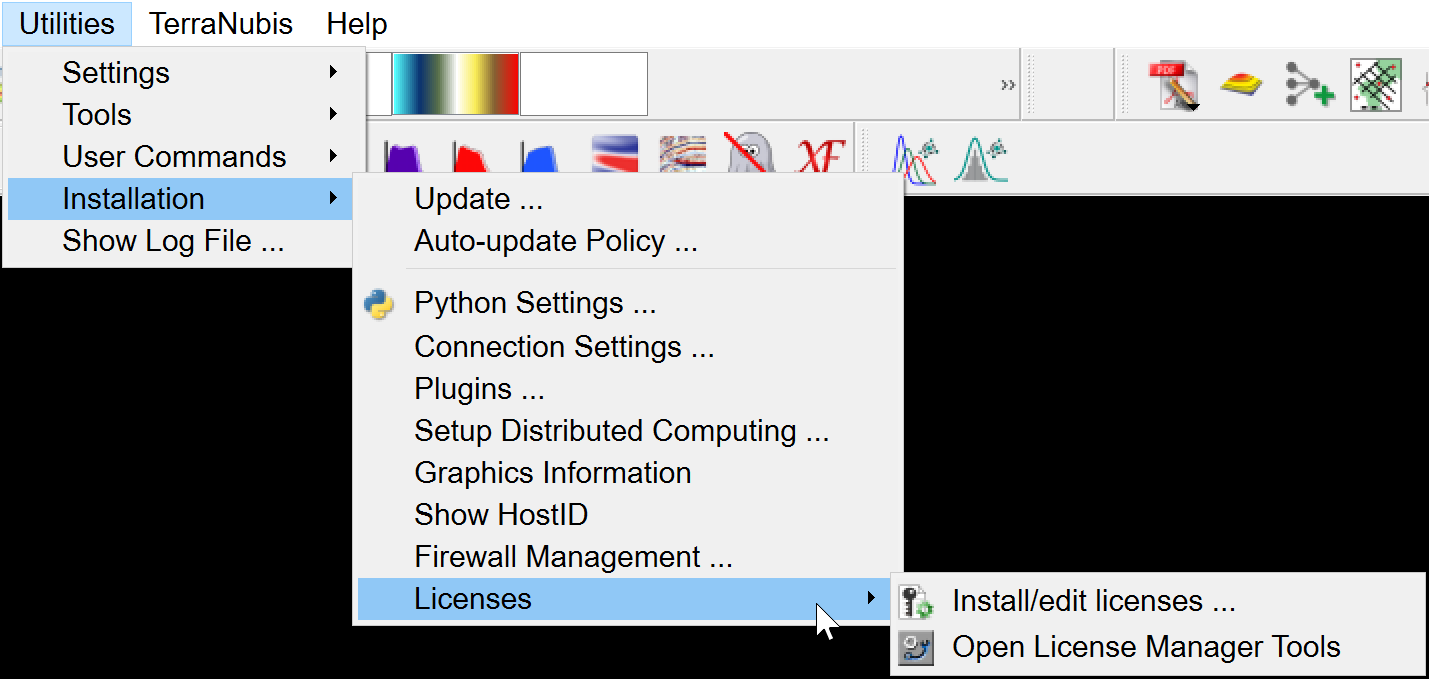
Figure: License options on Windows
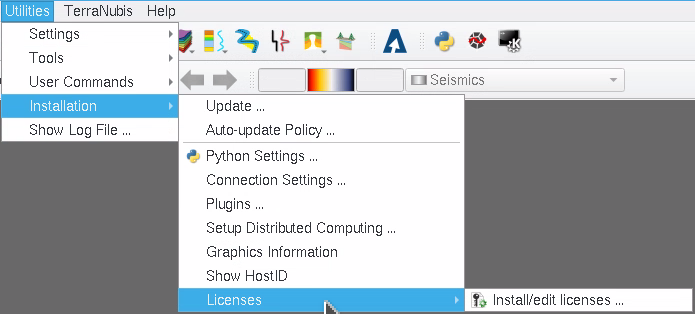
Figure: License options on Linux
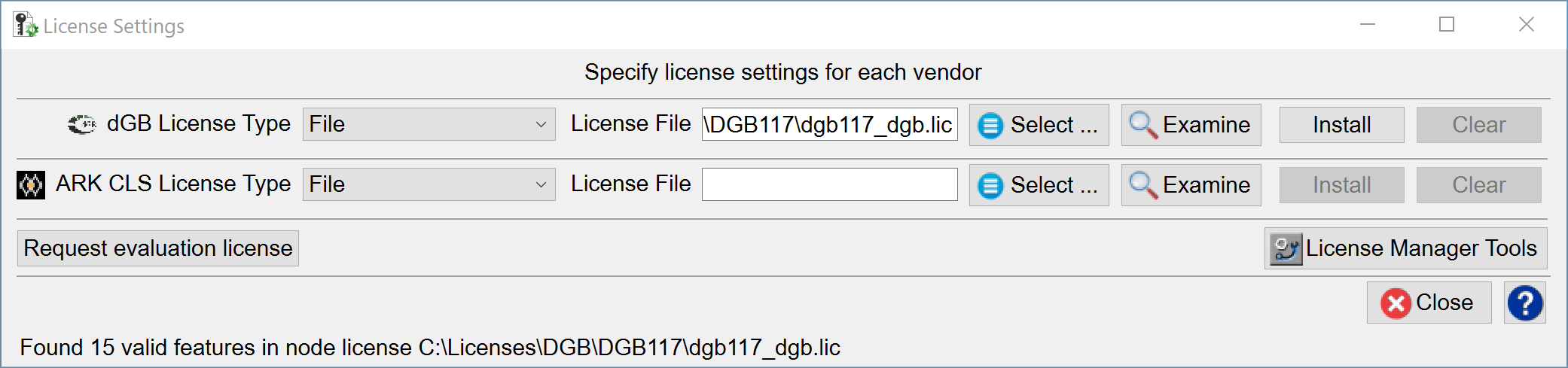
Windows:
Clicking the option Install/Edit licenses... will bring up the following tool:
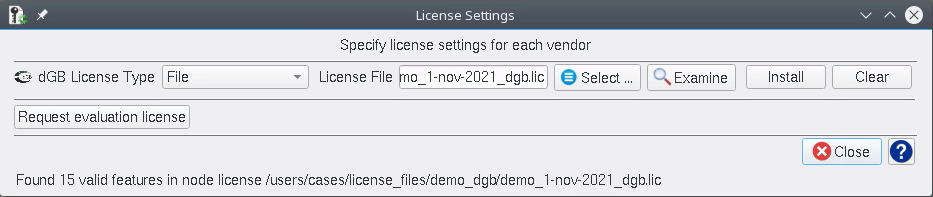
Linux:
Clicking the option Install/Edit licenses... will bring up the same tool but note that the License Manager Tools button is not present (this is a Windows-only option):
For both Windows & Linux:
As shown above, select File from the drop-down and Select to browse to the node-locked license to be installed.
You may then Examine the license:
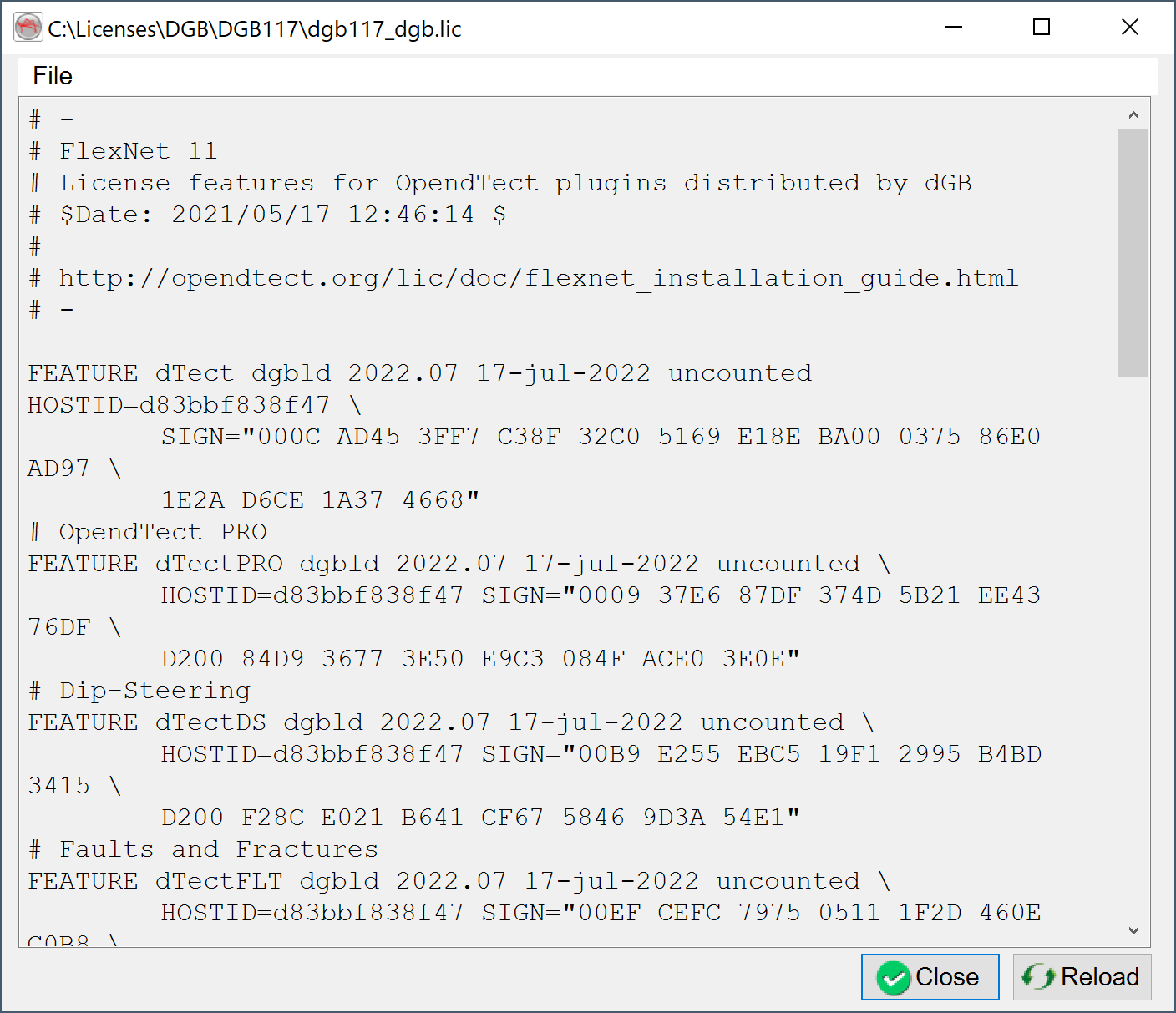
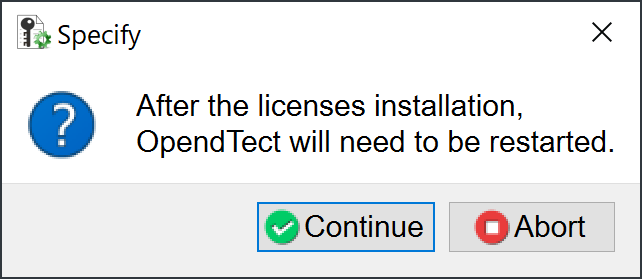
If everything seems in order, proceed to Install the license. On pressing Install, you will see a warning that a restart will be necessary:
Pressing Continue will show this message:
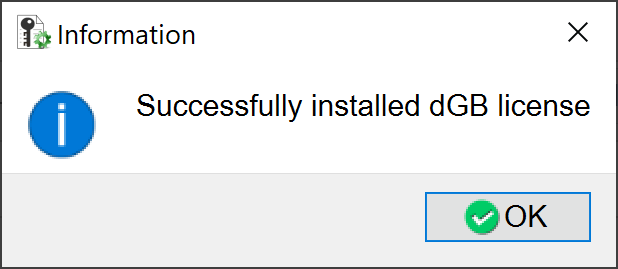
Clicking OK will prompt OpendTect to restart to complete the installation of the node-locked license.
For information about floating or server-based licenses, please refer to the
For more general information about OpendTect licensing options, please see the licenses page
A more complete explanation of OpendTect license installation can be found in the License Installation Webinar, available on OpendTect's YouTube Channel.