1.3 PDF3D

The PDF3D functionality has been expanded to include the option to export the 3D scene to a 3D viewing format called gITF.
Scroll down to view the possibilities for this option.
PDF3D
The plugin allows you to grab a 3D scene in OpendTect and store this in pdf format. The file can be opened in the free Acrobat Reader, or embedded into a Powerpoint presentation. In Acrobat Reader (v8 and higher) you can view, rotate, zoom, toggle elements on and off, and otherwise manipulate 3D graphics.
Currently supported objects include:
- In-line/cross-line/z-slice
- 3D, 2D horizons
- 2D line
- Well data
- Fault
- FaultStickSet
- Body
- Random lines
- Top/Bottom Image
- HorizonCube and SSIS models*
-
PointSet/Polygon. Multiple pointset shapes such as cylinder, cone and cube. If a shape is other than these just listed, it will be converted to sphere. These shapes’ size is dependent on the size of the pointset displayed in 3D Scene.
-
ColorBar
-
2D Seismic Line is now shown.
* requires HorizonCube and SSIS commercial plugins
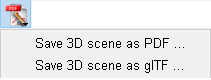
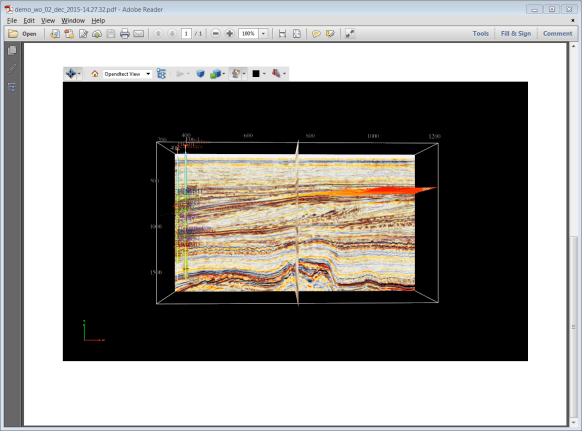
To create the file click on PDF3D icon  . This will open a pdf file containing all the elements displayed in the active scene and will automatically save it to the Misc folder of the project.
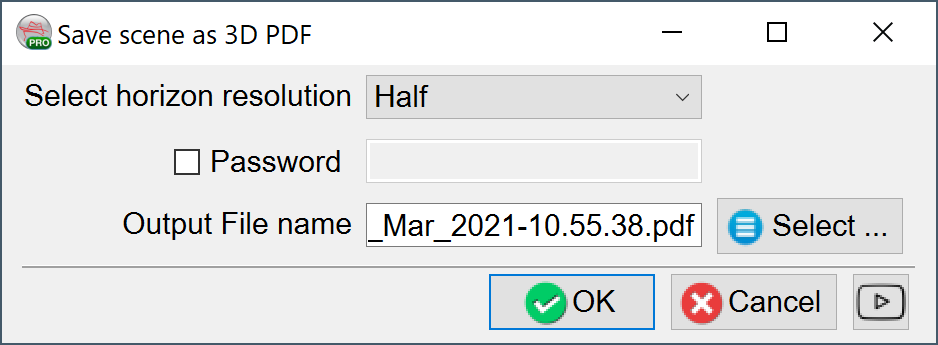
Save scene as option will first bring a window where you can choose the desired path for the pdf file and the name, select horizon resolution and set a password if necessary.
The 3D toolbar contains several icons to manipulate the scene. You will find more information on the Adobe website.
Please note: It may be necessary to give Adobe permission to display the 3D content, as in the following image. Use the Options drop-down to trust the document either once or always:

Toggle on the Model Tree icon  to display show a list where you can see the names of the scene elements and toggle them on and off. Decreasing of the Framerate Threshold to 4FPS will help to avoid blinking of the elements while rotating or repositioning. To do so, right-click on the scene > 3D Preferences > 3D and Multimedia Category.
For optimal viewing in Adobe Reader (v8 and higher) we recommend the following:
- Run Adobe Reader (not embedded within a browser such as Internet Explorer)
- Click on the menu Edit->Preferences... to pop up Preferences dialog
- Select under Categories: (box on left) 3D and Multimedia
- Turn on Enable double-sided rendering in Renderer Options box
- If the scene is not too large then you might wish to change the Optimization Scheme for Low Framerate from "Bounding Box" to "None" in the Auto-Degrade Options box. Alternatively you might wish to continue using Bounding Box but reduce the Framerate Threshold from 15FPS to 1FPS.
Furthermore, we recommend viewing directly in Adobe Reader and not as a plugin to a browser. Toggling elements on and off is easiest if you use the tree.
It is now possible to toggle between horizon intersection lines with Seismic slices and full display of horizon (called Surface in tree item):
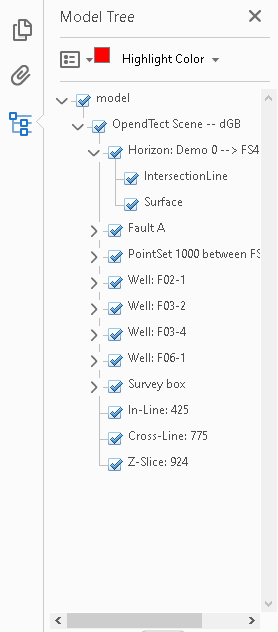
In case the model tree is not visible, it can be toggled on from the  button in the sidebar.
Note: Currently supported items in PDF3D should not include the ColorBar as it can not be toggled off from within the Adobe reader.
System requirement (Mac OS X)
Mac OS X 10.10 and higher needs to have the XQuartz application installed for PDF3D to load. XQuartz can be downloaded for free from their web page. XQuartz is a 3rd party application, and dGB Earth Sciences should not be held responsible for the performance of XQuartz.
glTF
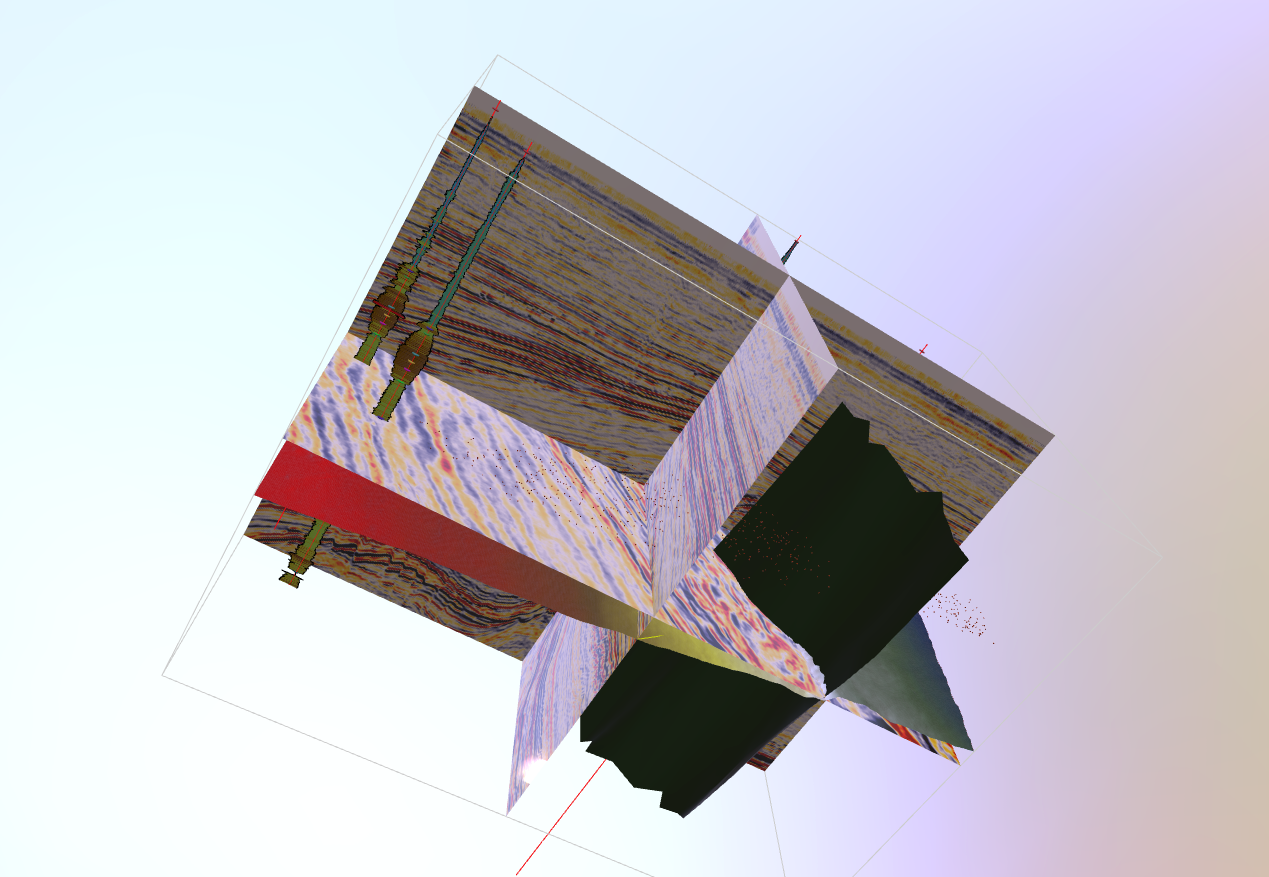
The files produced in this format can be viewed on the native Windows 3D viewer, available in Windows 8 & 10. These files can also be viewed online.
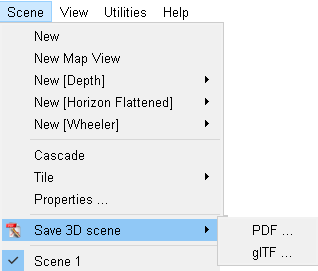
This option can be accessed via the PDF3D Tool Button (or from Scene -> Save 3D Scene -> gITF...):
On selecting to save as gITF, the following dialogue box appears, allowing the user to specify the resolution and to set the output file location.
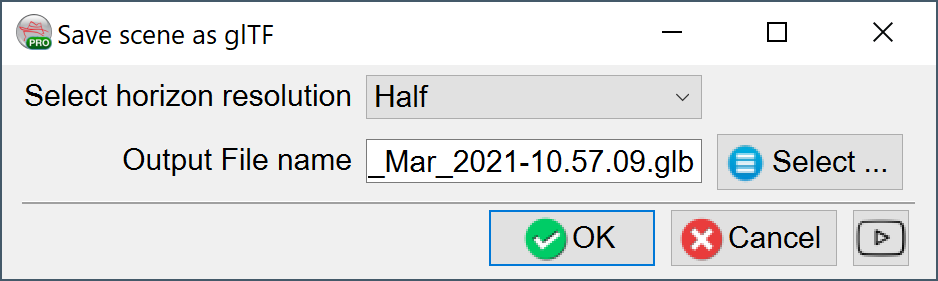
The default location is in the Survey\Misc folder.