8.3.5 Manage layer Properties
This window is also accessible from the Layer property selection window in the Layer Modeling module. In this manager, different usable layer properties are listed with their corresponding type. For example Delta and Epsilon properties belong to the Anisotropy type. Click on the usable property in the right column to see on the left column what is the type associated (highlighted).
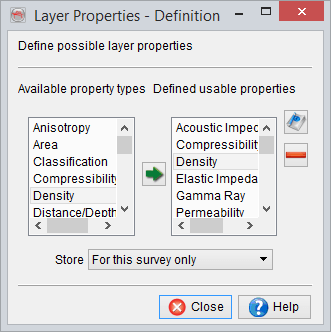
The two lists are hardcoded. However the user can ask for adding an extra property or type in sending an email to support. Usable properties listed can be removed of the list if they have no use in the current project.
Define/Edit usable properties
One usable property can be correspond only to one property type. For changing the property type of a usable property, the usable property needs to be removed and added again in association to the selected property type. To add a usable property, select a property type and click on the  in between the two list : it opens the property definition window.For each property needs a name. Possible aliases can be specified. It is useful to associate the correct log to a property: logs with different names can thus be related to the same property. Default display parameters are set up : the colour and the typical range value with the associated units.
Already defined usable properties can also be edited on clicking on the  icon.
icon.
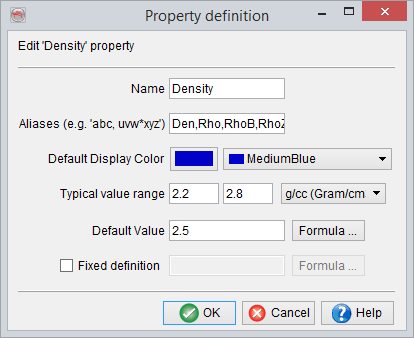
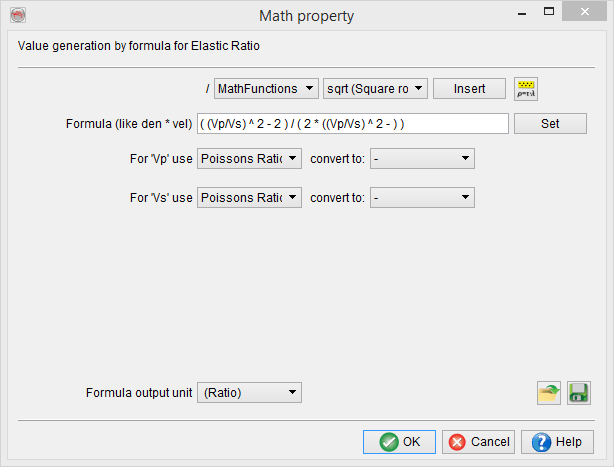
Optionally, the default value of any property can be defined by a specific equation that can either be typed in or retrieved from a list of saved formulas on clicking on Formula... Further formulas and equations may be utilized from the RockPhysics library, reached via the  icon.
icon.
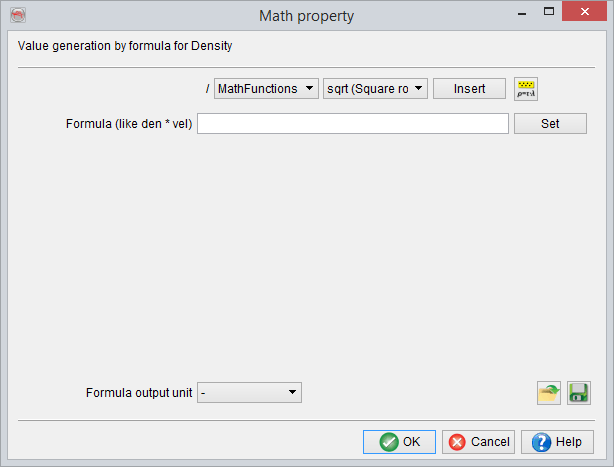
The edited Layer Properties are saved when clicking on Ok. There are also options here to either Load  or Save
  Maths Formulas.
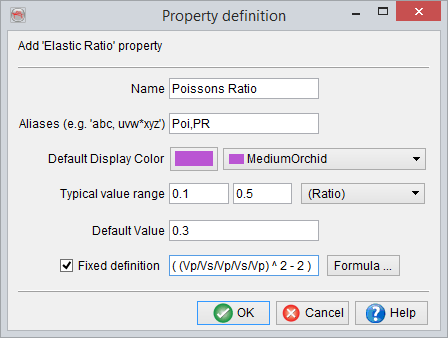
Fixed Definition: A property that will never be modeled directly but will be auto-computed in the background from other modeled properties. Formula for such properties always remain consistent, irrespective of any geological setting: Acoustic Impedance, Shear Impedance, Vp/Vs Ratio, Poisson’s Ratio, Lambda-Rho, Mu-Rho etc.
The ‘fixed definition’ for these properties can be specified by ticking the ‘Fixed definition’ box and clicking on the Formula button, bringing up the RockPhysics library:
Storing levels
The level where it is saved is specified in the main window:
- For this survey only (default): save at the root of the survey, applicable for all users only for this survey (if no parameters saved for the user).
- As default for all surveys: save in dTect/data (where are all the surveys), applicable for all users and all surveys (if no parameters saved for the user or this survey)
- As default for my user ID only: save in home/.od. If it exists, it has the priority on the two others.
Once the parameters saved, the only way to access the default parameters provided by OpendTect is to delete the Properties file where it is located. OpendTect will then access its default properties file.