5.4.2.4 Well-Tie Crosscheck Parameters
The cross-checking window is launched from the well ties display panel (Section- Well Tie: Display Panel) by clicking on the Display additional information button. The window contains the initial and estimated wavelet information. The wavelet can be computed between the two levels (start-end of data in time/depth or markers) that are provided at the top of this window. The window contains further key information: wavelets plot and the correlation coefficient. By changing the compute data between option, the correlation coefficient is auto-updated, this is done by using either Markers (Default) or Time/Depth. After achieving a high and positive correlation coefficient, the estimated wavelet can be saved. Importantly, the negative correlation coefficient shows that the polarity of the estimated wavelet is reversed. To avoid that the reference/initial wavelet's polarity has to be reversed.
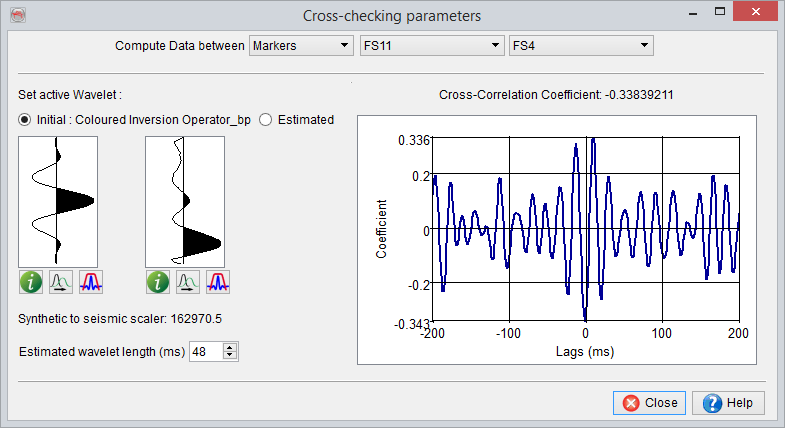
Check-crossings window and correlation panel
To save the estimated wavelet, press the icon in the well tie main window .
The wavelet properties ( ) can be shown as a graphical display of the wavelet, its amplitude spectrum and phase spectrum.
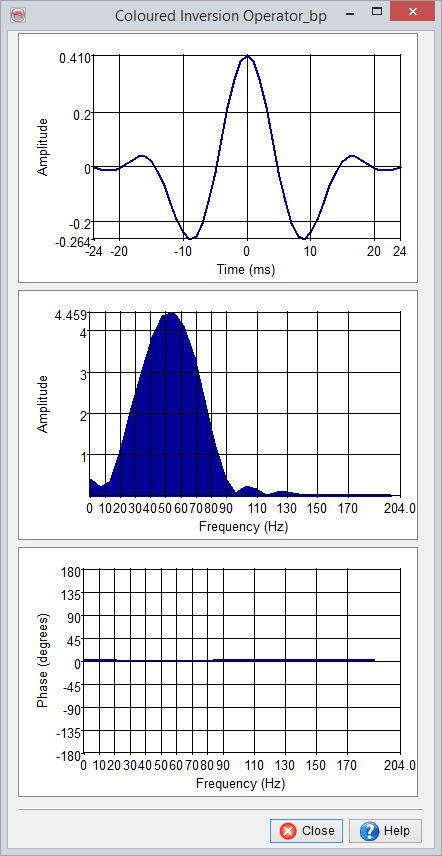
Save the estimated wavelet
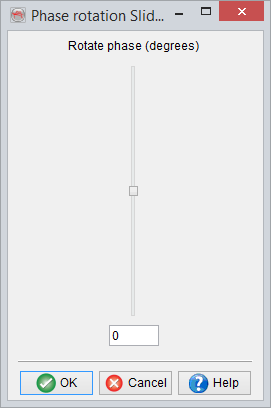
The user can also click on  to open a slider interface for shifting phase of the wavelet:
Rotate Wavelet: Using the slider, the user can edit the phase of a wavelet.
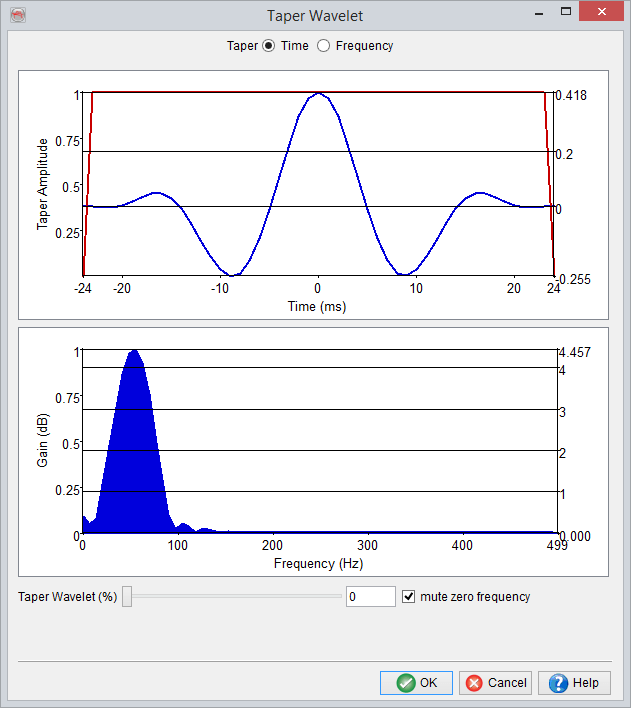
Taper Wavelet: This option enables the user to taper a wavelet by clicking on  . The User will see the real-time changes in the amplitude spectrum.