2.3 Mouse Controls - Scenes and Graphical Interaction
3D scene interaction
There are three interaction modes for 3D scenes, each has its own cursor:
- Position mode for positioning and moving display elements (arrow cursor)
- View mode for zoom, rotate and pan (hand cursor)
- Interpretation mode for picking and editing data points (cross cursor).
Important notice: Historically OpendTect supported two main display modes: View mode and Position mode (in older versions called Interact mode). The user switched between these two modes either via the switch display icon ( ,
,  ), or by pressing keyboard ESC. In version 6.2 and newer this is no longer necessary. All view mode operations (zoom, pan, rotate) are accessible at all times via middle-mouse button manipulations. We continue to support View mode - Position mode for now but we expect that this mode of operation will be phased out in future. In any case we recommend users not to use View mode and instead to use middle-mouse button manipulations.
Zooming and Rotating views is also possible using the wheels in that appear in the upper and lower left corners of the graphical area when you hover over these corners with your cursor.
Short-keys & mouse-controls
Positioning, zooming, panning, rotating and interpreting data in the 3D scene are core interactions in OpendTect which are done with mouse clicks and drags. Some operations require holding a Shift or Control key while clicking. OpendTect supports a range of short-keys to speed up various interactions. The default settings of the most important short-keys and mouse-controls are given in the tables below:
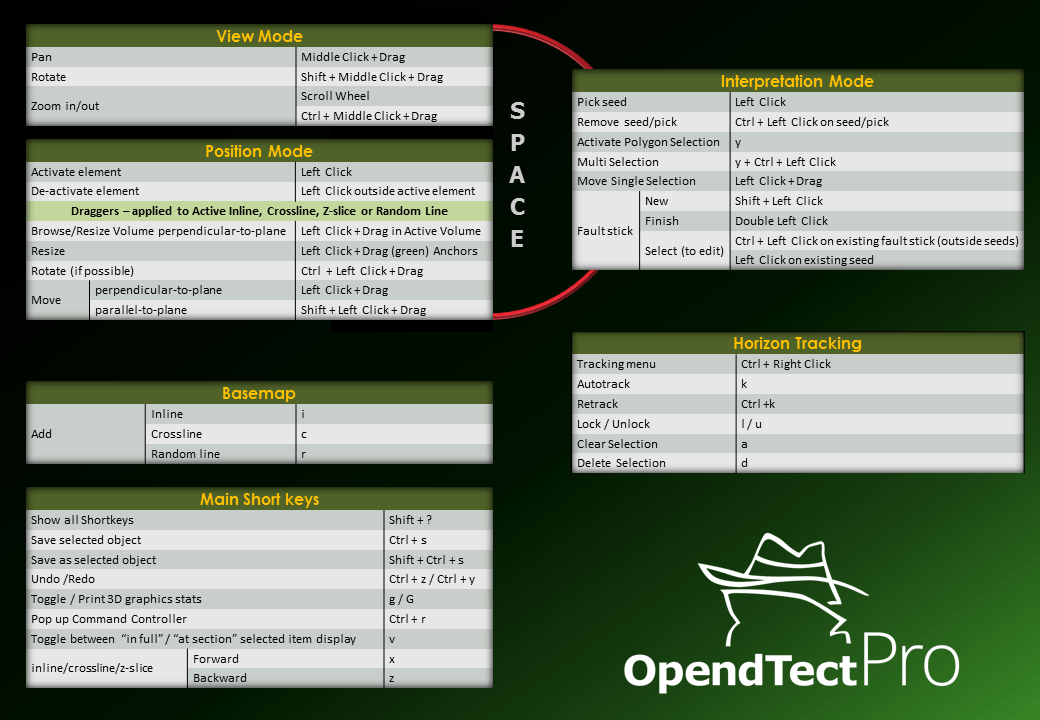
These tables assume a mouse with left and right buttons and a wheel in the middle. Touch-pads, and other input devices will support similar functionality but the actions might be mapped differently. Mouse controls and a number of short-keys can be modified from Utilities menu > Settings > Look and Feel and Utilities menu > Settings > Keyboard Shortcuts.