5.7 HorizonCube Display Options
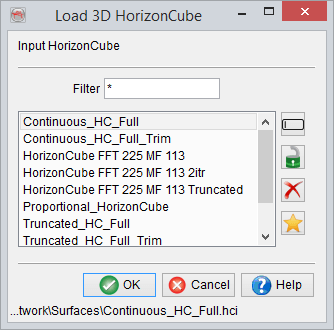
A HorizonCube is selected from the OpendTect Processing Menu (Processing > HorizonCube > 3D/2D..). The HorizonCube Control Center pops up. In this window, the active HorizonCube can be selected via the select button, from the window below:
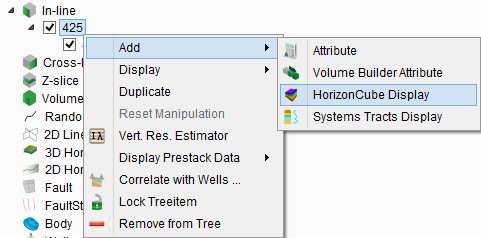
Alternatively, a HorizonCube can be selected directly on an element (e.g. Inline/Crossline/2D Line):
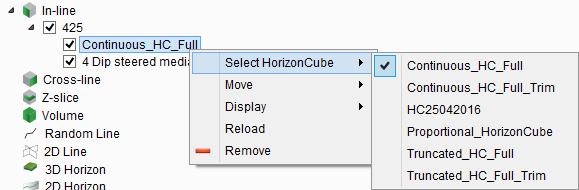
Changing the selected HorizonCube can be done via the control centre (as mentioned above), or directly via the element in the tree. Here we see an example of changing the HorizonCube displayed on an inline:
HorizonCube display options
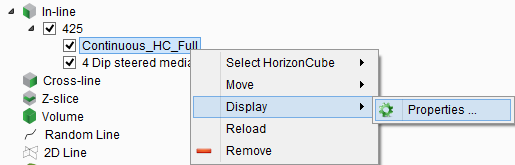
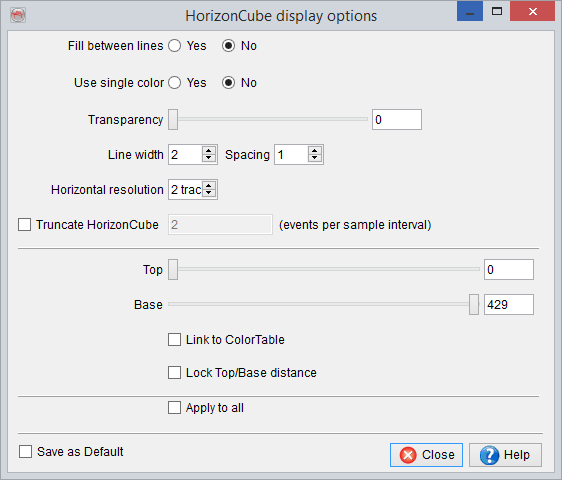
The display properties of an active HorizonCube in the scene.
From the tree, right-click on the displayed HorizonCube and select 'Display > Properties' menu item. It will launch a new dialog appears as shown above:
In this particular window, you can change the line styles (fill/ single color display), spacing between horizons, line width. Importantly, a slider (top of bottom) is also available to slide the horizons. For instance, if you have displayed thick horizon lines and you want to see that how the layers are developed, you can move the slider within same window. The horizontal resolution option will increase or decrease horizontal smoothing according to the selected traces.
Truncated HorizonCube is an option to apply on-the-fly truncation filter on a Continuous HorizonCube. The value of 2 means that only 2 events would be kept within a sampling interval and the remaining would be removed in the display. Note that the truncated HorizonCube is optimum display for interpreting depositional trends in a Wheeler scene. Therefore, this option is a valuable tool to make SSIS Interpretation.
Another useful visualization tool is the HorizonCube Slider:
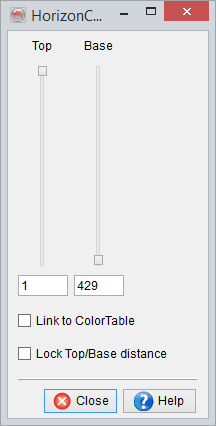
Once you have the HorizxonCube displayed on, for example, an inline, pressing the HorizonCube slider button brings up a simple dialogue which allows for control of the horizons displayed in the scene:
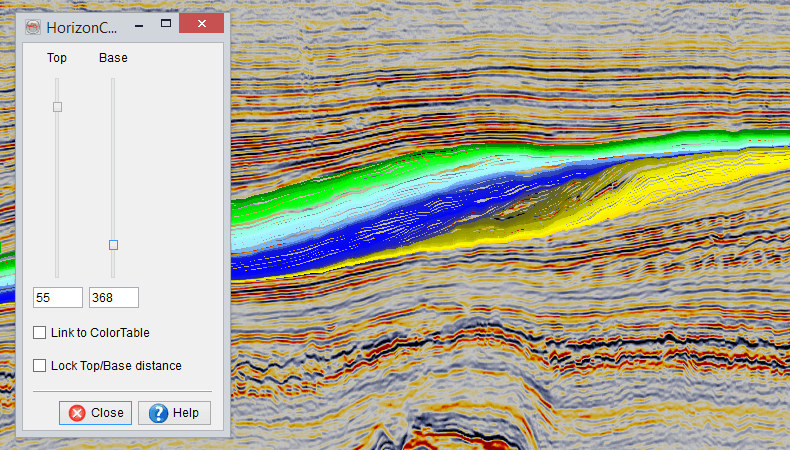
The top and base horizons can be manipulated via the slider or set by entering a Z value into either field. Additional options allow the user to 'Link to ColorTable' and/or 'Lock Top/Base Distance' to aid browsing.