3 OpendTect Trees and Elements
Each scene has a corresponding detachable tree to control the elements to be displayed. A tree consists of several elements of different type, which are described in detail below. Tree elements containing elements one level down can be expanded by clicking on the markers (+ or -) left of each main element. The order in which items appear in the tree can be changed by selecting the item that you want to move, then press and hold shift, and press the arrow up or down keys on your keyboard.
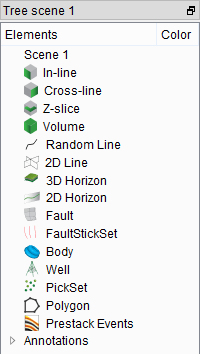
The tree is a utility window that can be moved outside of the main OpendTect window. To do so, first click once on the small squares at the top-right corner of the tree scene, then drag by clicking (left-click) on its title bar to place it anywhere.
Some operating system hide utility windows when the main window is inactive.
A common issue with certain Linux distributions is this: decoupling the tree causes tree to disappear when using, for example, the attribute engine or when the progress bar is showing. To resolve this, please do the following:
- Go to the KDE Start button
- Applications
- Configure desktop
- Under 'Workspace Appearance and Behavior' click on 'Window Behavior'. You should see this window:
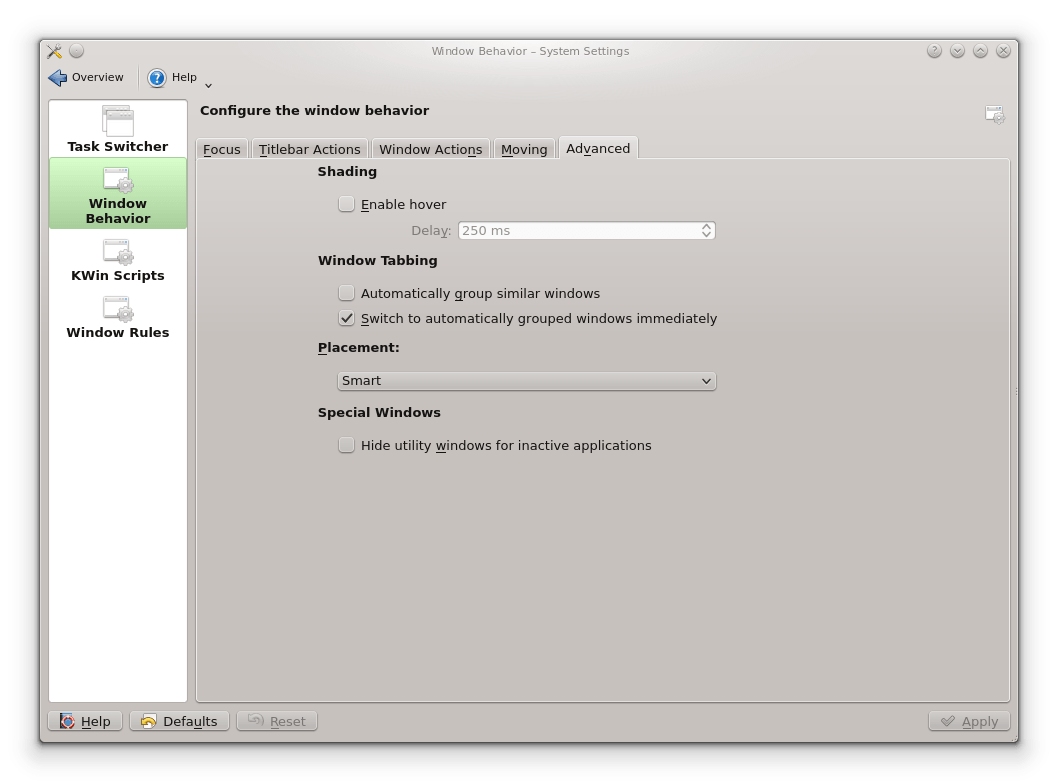
- Make sure the option 'Hide utility windows for inactive applications' is not checked.
- Click on Apply button.