3.7.7.1.1 Horizon Tracking Settings
3D horizon interpretation in OpendTect can be conveniently started from the right-click menu of 3D Horizon > New > Auto and Manual Tracking in the Tree of either 3D scene or 2D viewer.
Horizons can be tracked in various modes:
OpendTect supports the following ways of picking:
- Auto-tracking mode:
- Recommended: Left-click to add seeds (seeds are stored with a horizon).
- Optional: hold Left-click and draw along the section, seeds will be automatically added.
- Ctrl + Left-click to remove seeds.
- Mouse draw:
- Recommended: hold Left-click and draw along the section to create an individual patch (patches can be connected by simply drawing with overlaps).
- Optional: left-click to pick an individual patch and double-click to finish it.
- Hold (Ctrl + Left-click) and drag to erase interpretation along the line.
Horizon Tracking Settings window.
Right-click 3D Horizon in the tree and select New > Auto and Manual Tracking. This will launch Horizon Tracking Settings window which contains several tabs. Optionally, the dialog can be retrieved by right clicking on the horizon in the Tree and choosing Tracking > Change Settings.
Mode Tab
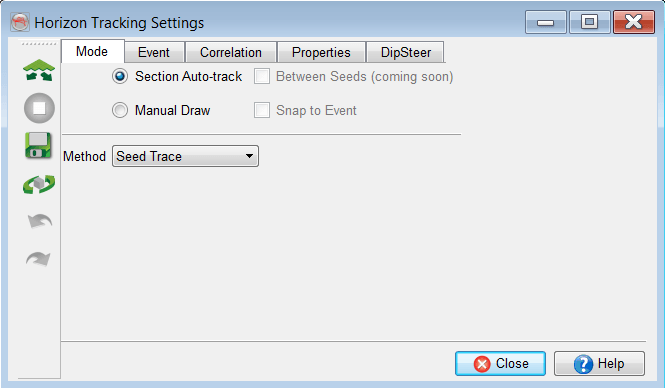
Choose the tracking mode:
- Section Auto-track is used to auto-track a horizon along a section (inline, crossline, and random line) of a given volume. If a sub-volume is preloaded, only the sub-volume area will be auto-tracked. When this mode is selected, the volume auto-tracking icon
 will be active, which requires seeds.
 - Manual Draw mode will manually pick a horizon (interpolated line) between two clicked or mouse dragged positions. Optionally, it also snaps to a selected event between the picked positions. This mode is used in difficult areas, for example to cross faults, noise zones or to interpret unconformities.
Event Tab
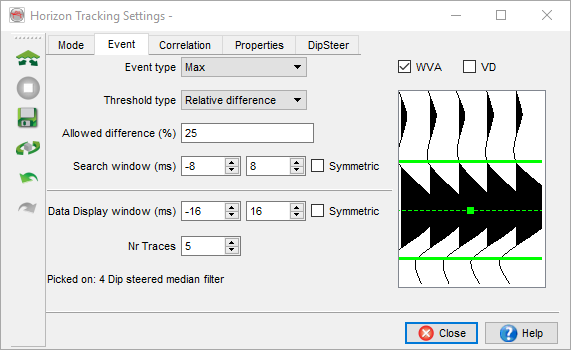
Event Tab contains the defining parameters for Section / Volume auto-tracking.
- Input data: The input data is automatically selected when you pick on a section. This can be the original seismic volume, or a filtered seismic volume (preferred) or any other attribute. The horizon is linked to this input seismic. you can change the input seismic at any time: it won't change your saved interpretation. If you change the data during interpretation, the next click on the new data may show a warning message. If you continue, then the new data will be used to do auto-tracking.
- Event type: Specify the event type you want to pick. The tracker can track negative reflectors (Min), positive reflectors (Max), a Z-type zero-crossing (0+-), or a S-type zero-crossing (0-+). If the tracking does not seem to work, check that the event type corresponds to the event you actually interpreted the seed(s). If Seed Trace method is chosen then one can interpret a mixed phased horizon.
- Threshold type:
- Cut-off amplitude: Here, an absolute amplitude is used as the stopping criteria for the tracker. When the tracker encounters a value below this threshold value it stops tracking. (For a max-event the tracker stops if the value is below this threshold value, and for a min-event when it is above this threshold value). Tip: point your mouse at the event and the amplitude value is displayed at the bottom of your screen.
- Relative difference: The tracker will compare the amplitude of the last tracked point to the amplitude of the point that is candidate for tracking. If the difference exceeds the chosen percentage, the tracker stops tracking. Further explanation on Steps is given below.
- Search Window: The tracker searches for the chosen event type based on amplitude in a time window relative to the last tracked sample.
- Display Window: This controls the display of WVA/VD of the surrounding trace segments near the last picked seeds. One can control the display window and number of traces. This gives an overview of the picked location. In the display, one can also change the search window by moving the green lines up/down.
At the bottom of this tab, one may see a status note on picked/current data on which interpretation is being performed.
Correlation Tab
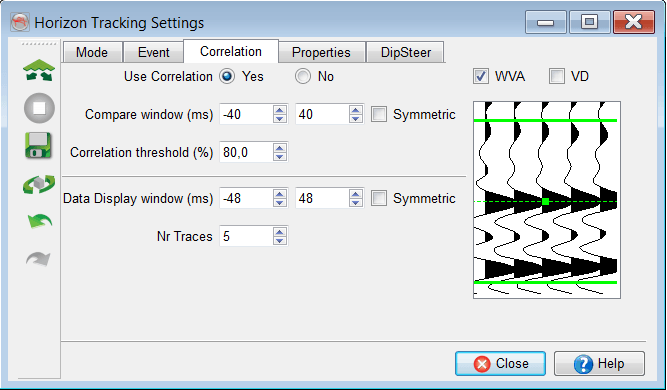
A trace segment around the last tracked point is compared to all the trace segments on the neighboring traces around the points that lie within the Search window (See figure below).
In this tab, one can do auto-tracking by turning the correlation ON. The correlation window should be small enough to ensure a waveform. The threshold is generally strict (80% or higher) to track only high quality amplitudes. The correlation window size can be changed by moving the green lines in the display window.
Properties Tab
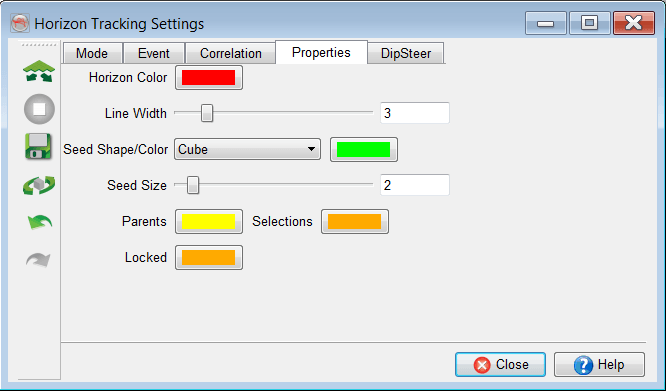
This tab is used to adjust the display properties of the horizon and corresponding seeds. Optionally, you can also change the color codes for various parts (parent paths, selection of a horizon if you intend to remove through a polygonal selection, locked tracking areas) of the horizon.
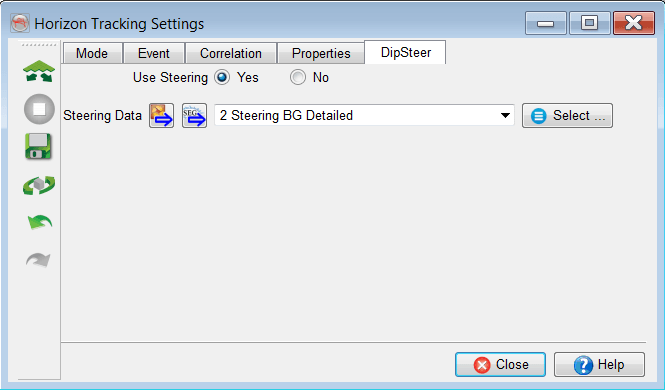
A SteeringCube can be added as a constraint for horizon interpretation. This will improve the horizon tracking especially in the areas of dipping reflectors. Dip steering gives structural information.
3D Auto-Tracking Menu
A dedicated 3D Auto-tracking menu is generally launched by CTRL + right click in 3D scene.
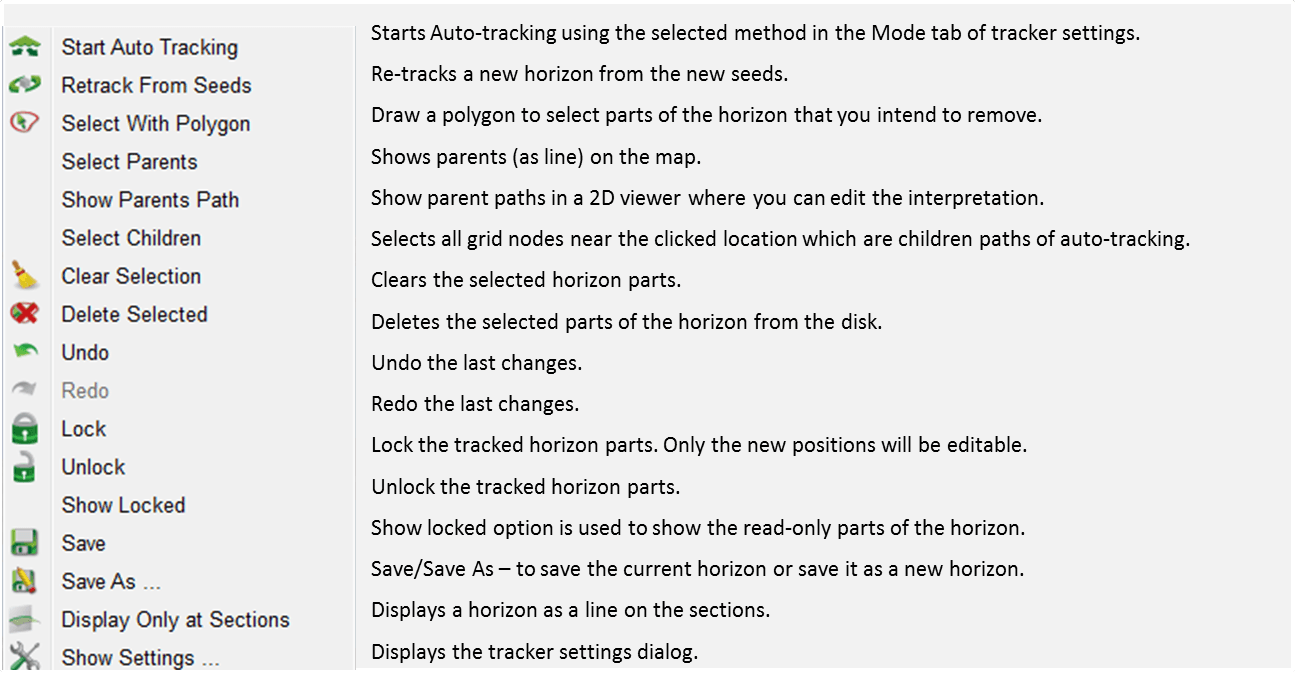
Using this menu, you can control several tracking features.
Tracking Workflow
After adjusting the parameters in the tracker setup (which can remain open during tracking), start picking seeds on a displayed inline/crossline.
Please refer to How-to instructions for step-by-step workflow on 3D Auto-tracking and Tracking in 2D viewer.
Auto-tracking in a 3D volume
Auto-tracking in 3D is done in following steps:
- Pre-load a sub-volume (Survey > Pre-load > Seismic) within which you intend to do auto-tracking. If the volume size is small, you may pre-load the entire volume in the memory.
- Launch the basemap window (View > basemap) to move the sections and QC the interpretation.
- Add inlines / crosslines / random line.
- Add a new 3D horizon in the tree.
- Pick several seeds on inlines / crosslines / random lines and adjust the tracking parameters.
- Press the auto-track button.
- If the tracking result is good, you may lock
 (CTRL + right click) the results so that they are not changed. You may unlock
  the old tracking paths if you want to change them during interpretation.
 - Otherwise, you add more seeds and choose re-track from seeds
 .
. - You can optionally, remove the wrong paths at a mouse location by using CTRL + right click menu (Select parent / children paths and relaunching the menu to remove the selection).
- Another option is to launch a 2D Viewer of parent paths to edit auto-tracking errors. If you do that, then you may have to re-track from seeds again.
Some Important Tracking Short-cuts:
- CTRL + Z: Undo the last action.
- CTRL + Y: Redo the last action.
- CTRL + S: Saves the horizon.
- k : Auto-track.
- SPACE bar: Switches between picking (cross) horizon and dragging (green pointer) sections.
Manual Drawing on Sections (2D/3D)
You can manually interpret a horizon by drawing on the seismic section. OpendTect supports both picking methods: drawing like a pen (Tablet/Touch screen) or mouse clicks. If you have picked a part of a reflectors, a green colored (temporary) line will appear. To confirm interpretation, you will required to double click. This will show a horizon segment in actual color. This method is very useful for picking in difficult areas (noisier zones or unconformities).