3.4.4 Create From Wells
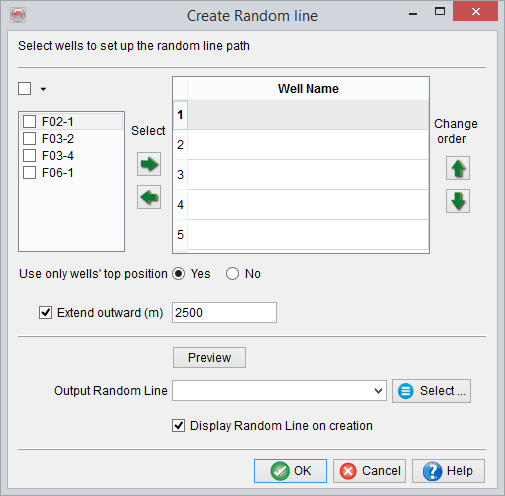
A random line can be created in such a way that it follows wells path. By right-clicking on Random line in the tree, and selecting Generate > From Wells ..., a dialog box appears with a list of wells that can be selected in order to set up the random line path.
Use the arrows to add and/or remove wells. Use the second set of arrows to setup a well sequence. Specify whether you want to use only the well top position or not. When you use all well points, you can specify the order by clicking the Change Order arrows.
The Extend outward allows the extension of the random lines in both sides away from wells.
Press the preview button to see a top view of the random line that will be created. If the preview does not show exactly the desired random line, then change the parameters (the wells involved or the order in which they are listed). You can save the newly created random line by specifying the name in Output Random line(s) field. If you want to display the random line on creation, check the box Display Random Line on creation.
The following picture is an example of random line created from wells.
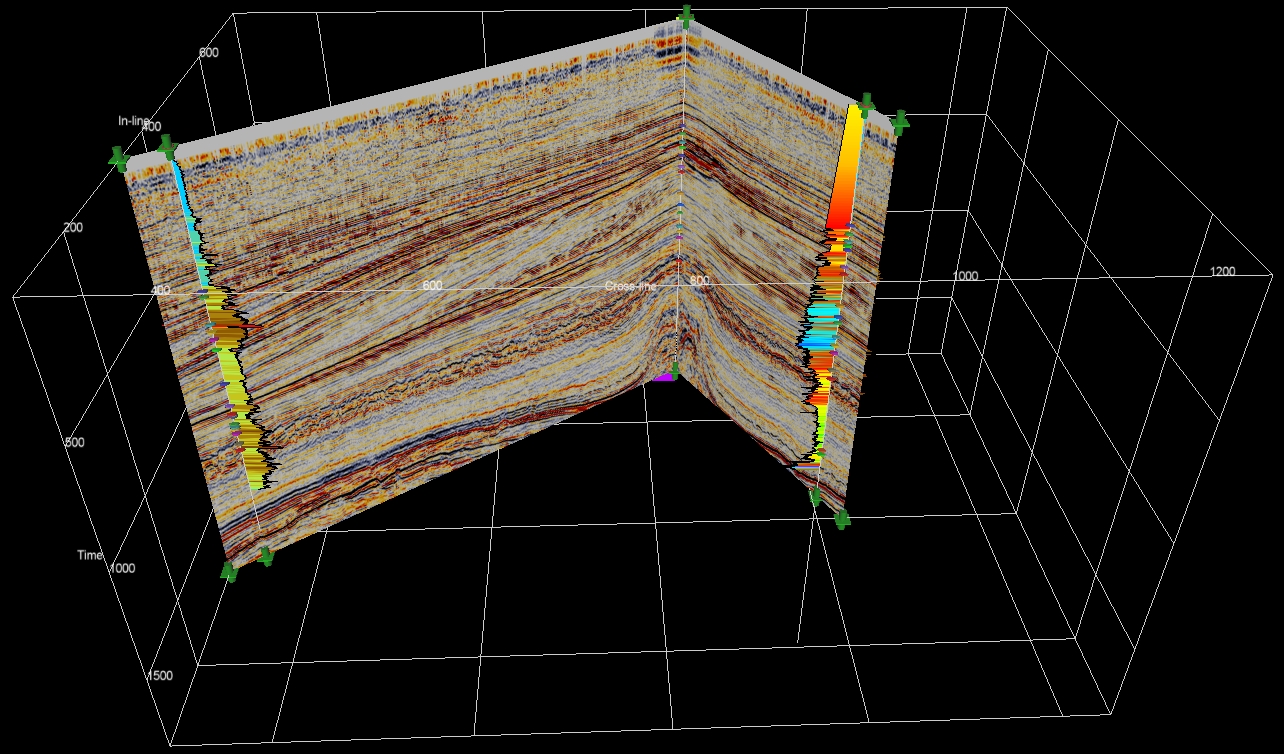
In this picture, a random line goes through four wells following a random path between these wells (which are used as constraints).