6.6.2 Distributed Computing Window
The distributed computing window controls on which machines a volume output or SteeringCube batch job will be processed. Jobs are distributed over the Used hosts on a line-by-line basis (the number of inlines per job can be specified). Hosts can be Added and/or Stopped at all times. Processed results are stored in a Temporary storage directory.
At the end of the processing sequence, OpendTect will merge all processed lines and store the data in the output file that was specified in the Volume output or Create SteeringCube window, and it will delete the temporary disk files. If for any reason OpendTect fails to perform this data transfer, this can also be done manually in the File - Manage module. The temporary data store appears with a name starting with Proc_. Select this item and copy it to a new cube.
It is possible that at the end of a distributed computing batch job not all data was processed successfully. Some jobs may have failed (e.g. because one of the hosts was temporarily not available). OpendTect will come back with a warning message stating which jobs (i.e. which inlines) have not been processed yet. It is then advised to re-submit these jobs until all data are processed. The Auto-fill option automatically scans and fills gaps in the processed volume.
The Nice level sets the priority the process gets. With the nice level set on 19 for exemple the process has very low priority and other processes that run on the same computer get priority. If the nice level is set to 1 the process gets the highest priority.
The Processes menu allows to set the Run, Pause, or Go - Only between options. The Go - Only between option, pauses and runs the processes at user-defined times.
OpendTect calls the system utilities of the 'hostent' (sethostent, gethostent, etc.) type to get a table of hosts that can be selected. How the Operating System builds the lists is dependent on the particular system setup; most likely /etc/hosts and/or the NIS tables are consulted. OpendTect supports multi-threading which means that all processors of multi-processor machines will be used.
Though we support multi-threading, not all calculations can be run this way due to some of the algorithms involved (ie: recursive calculations). See the following table:
|
Multi-threaded |
Not multi-threaded |
|
BG Steering* |
Constant Steering |
|
Central Steering |
|
|
Convolve (all except Wavelet option) |
DeltaResample |
|
Curvature |
Energy (Gradient option) |
|
Event Steering |
|
|
Energy (all except Gradient option) |
FingerPrint |
|
Event |
GapDecon |
|
FreqFilter* |
|
|
Frequency* |
HorizonCube Dip |
|
Full Steering |
HorizonCube Spacing |
|
HorizonCube Data |
Horizon |
|
HorizonCube Density |
Match Delta |
|
HorizonCube Layer |
Maths (recursive expression) |
|
Hilbert |
Perpendicular Dip Extractor |
|
Instantaneous** |
SampleValue |
|
Local Fluid Contact Finder |
Scaling (scaling type AGC and stats type = detrend) |
|
Maths (except when expression is recursive) |
Shift |
|
Polar Dip |
|
|
Position |
|
|
PreStack |
|
|
Reference |
|
|
Scaling (all except scaling type AGC and stats type = detrend) |
|
|
Semblance |
|
|
Similarity |
|
|
Spectral Decomposition* |
|
|
SpectrogramDip (create SteeringCube, FFT steering) |
|
|
Texture |
|
|
Tutorial |
|
|
Volume Statistics |
Distributed Computing on Windows OS
The new system works with a Daemon Service running in background on every remote machine to be used for processing. The communication works with TCP/IP and requires some configurations to actually make things working.
Mapping of Survey folder: We assume a DataRoot folder ($DTECT_DATA) to be in a centralised server. This folder has to be mapped on the same drive in every PC to be used as hosts. For example, we have 4 PCs (A,B,C,D). A is a server and the ODData is in drive D. Then map D:ODData on e.g. S: on B, C and D. PCs B, C, and D can then be used as your processing nodes.
OpendTect installation: You need to have OpendTect installed on all hosts, and make sure they all use the same survey at the same time (have access to). For example if B is using F3_Demo and want to process something in F3_Demo. then it has to be made sure that the rest of the two PCs also use the same folder as long as the processing is needed.
BatchHosts file: Add the IP addresses of C and D in the BatchHosts file inside the application data folder.
Start the daemon: If launching process from B to the other two, then B is his local machine, C and D are remote machine. In this case the Daemon service ( odremoteservice ) application has to be launched from bin\win folder ( win64 ) only in the remote machines and not in the local machine ( B ). Please note the odremoteservice.exe not to be run directly instead a launching tool will be found in win32mmod_remote_service_manager. Use od_remote_service_manager to launch the daemon which will also add anotification icon to the system tray. Once the service starts, the remote machines are ready.
Start processing: Select the PC's B, C and D from the list of machines in the distributed computing launch window and start processing:
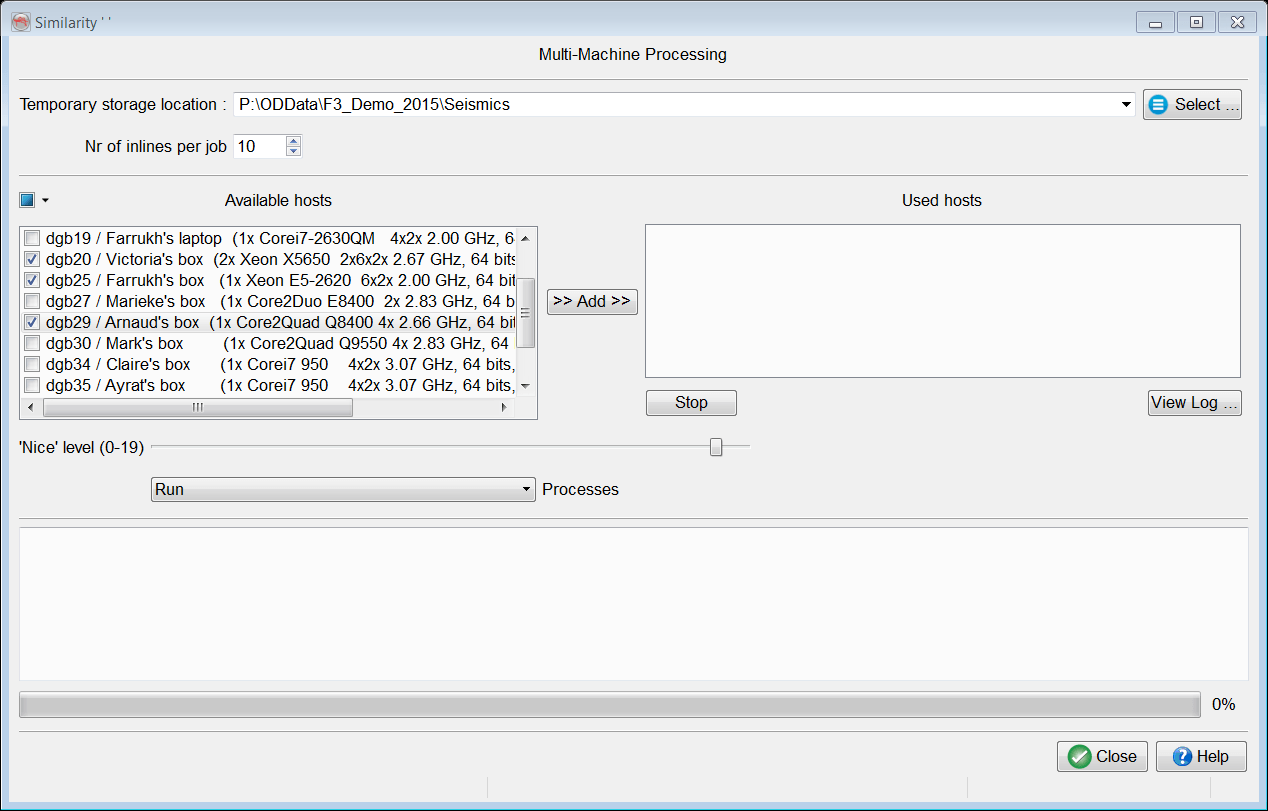
Select machines to use for processing from the list
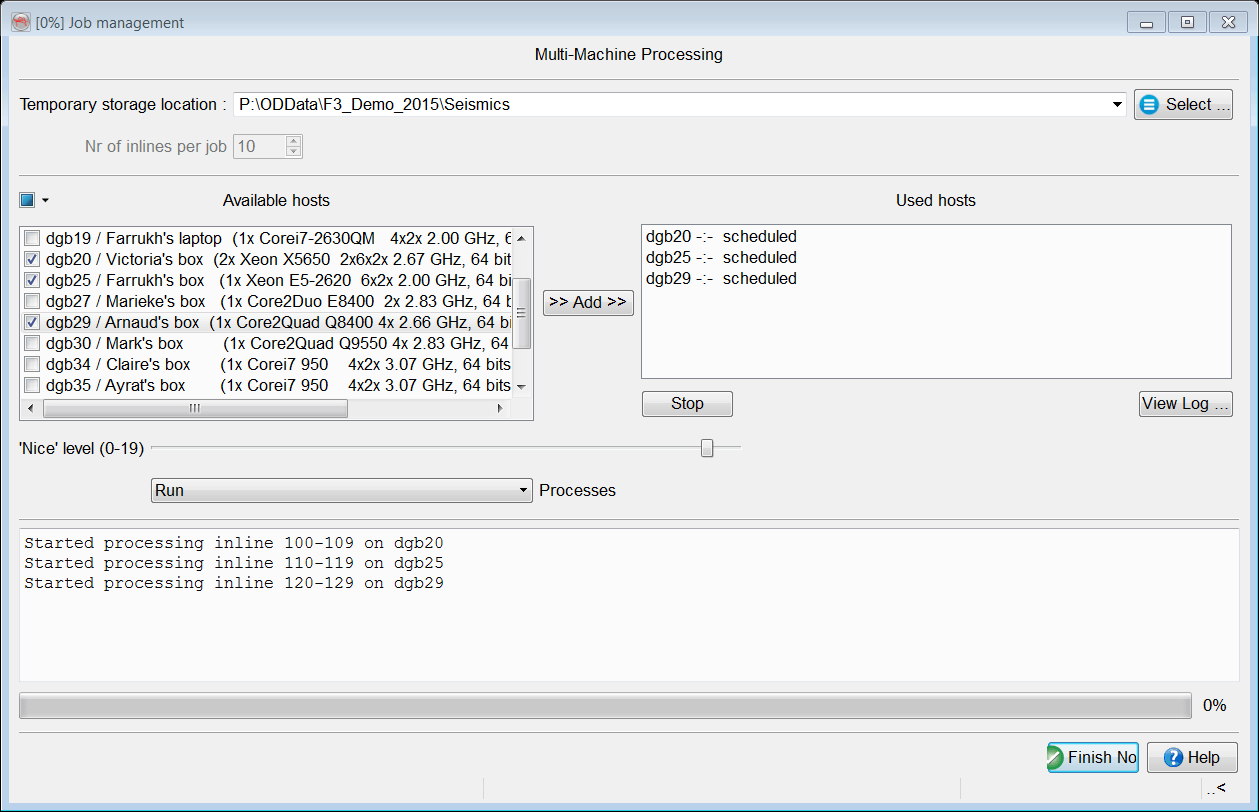
Distributed Computing progress window
For more information, please refer to the OpendTect YouTube Channel for the webinar on: Distributed Computing Set-Up