9.4.10.1 Install or Edit licenses
Plugins to OpendTect can be run either by using a license server or by using demo (evaluation) licenses. This second case is case called "node-locked license installation".
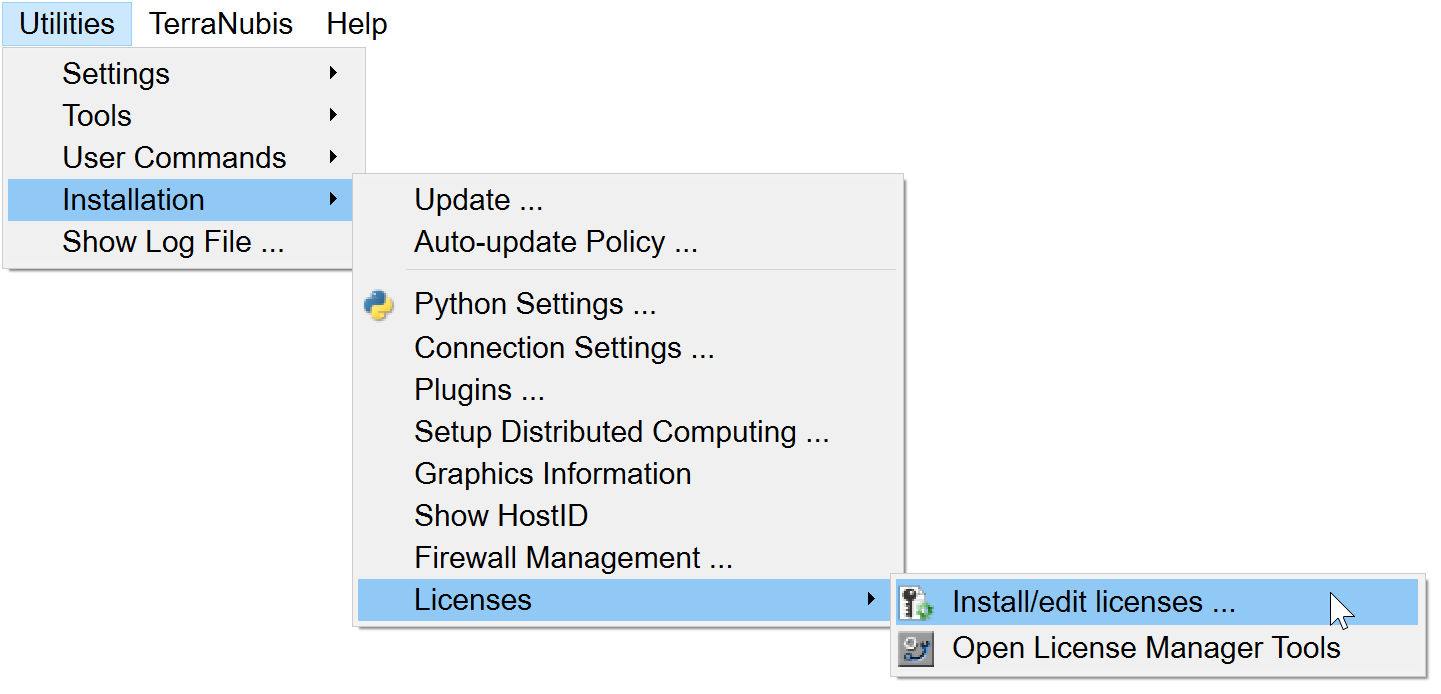
This will bring up the following window which you can use to point OpendTect to the license file:
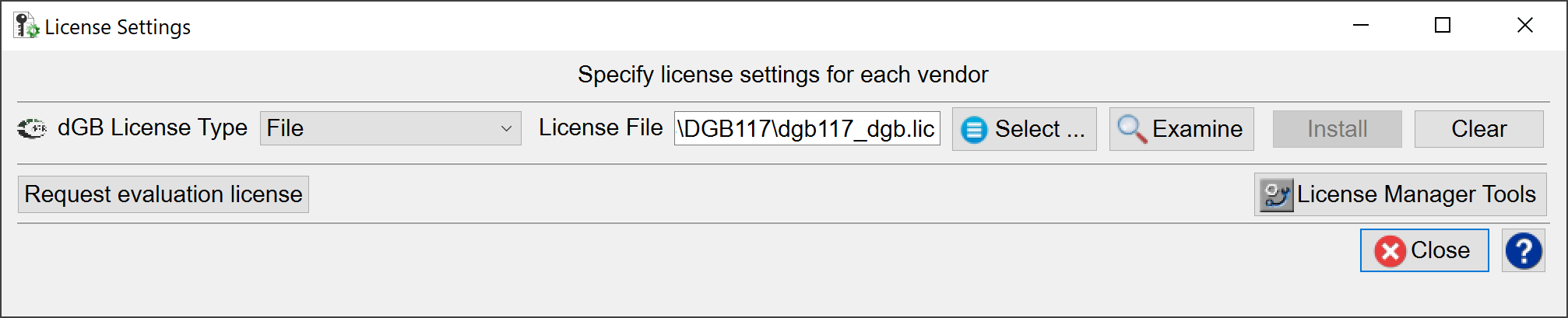
Here you can:
-
File (Node-locked):
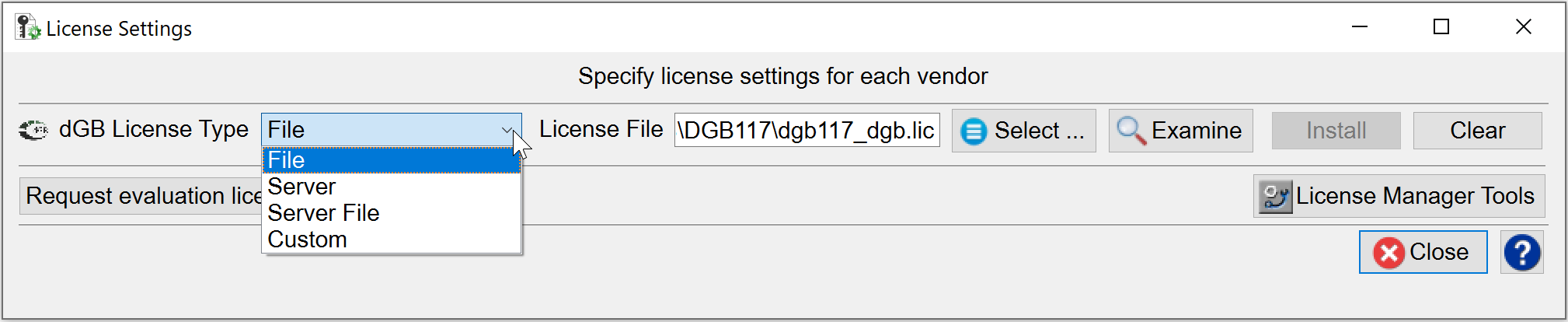
Server:
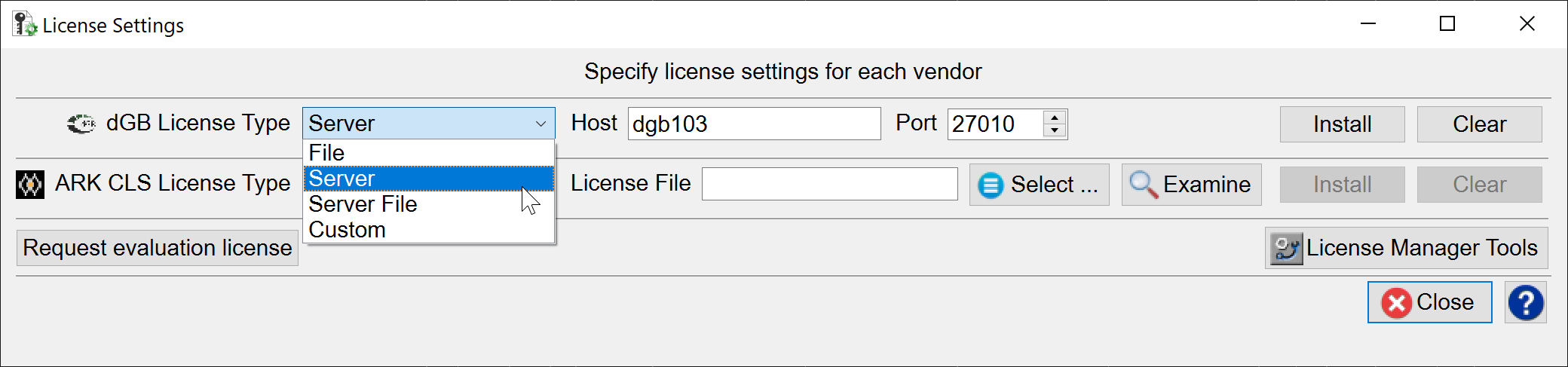
-
Select the location of the license file
-
Examine the license file:
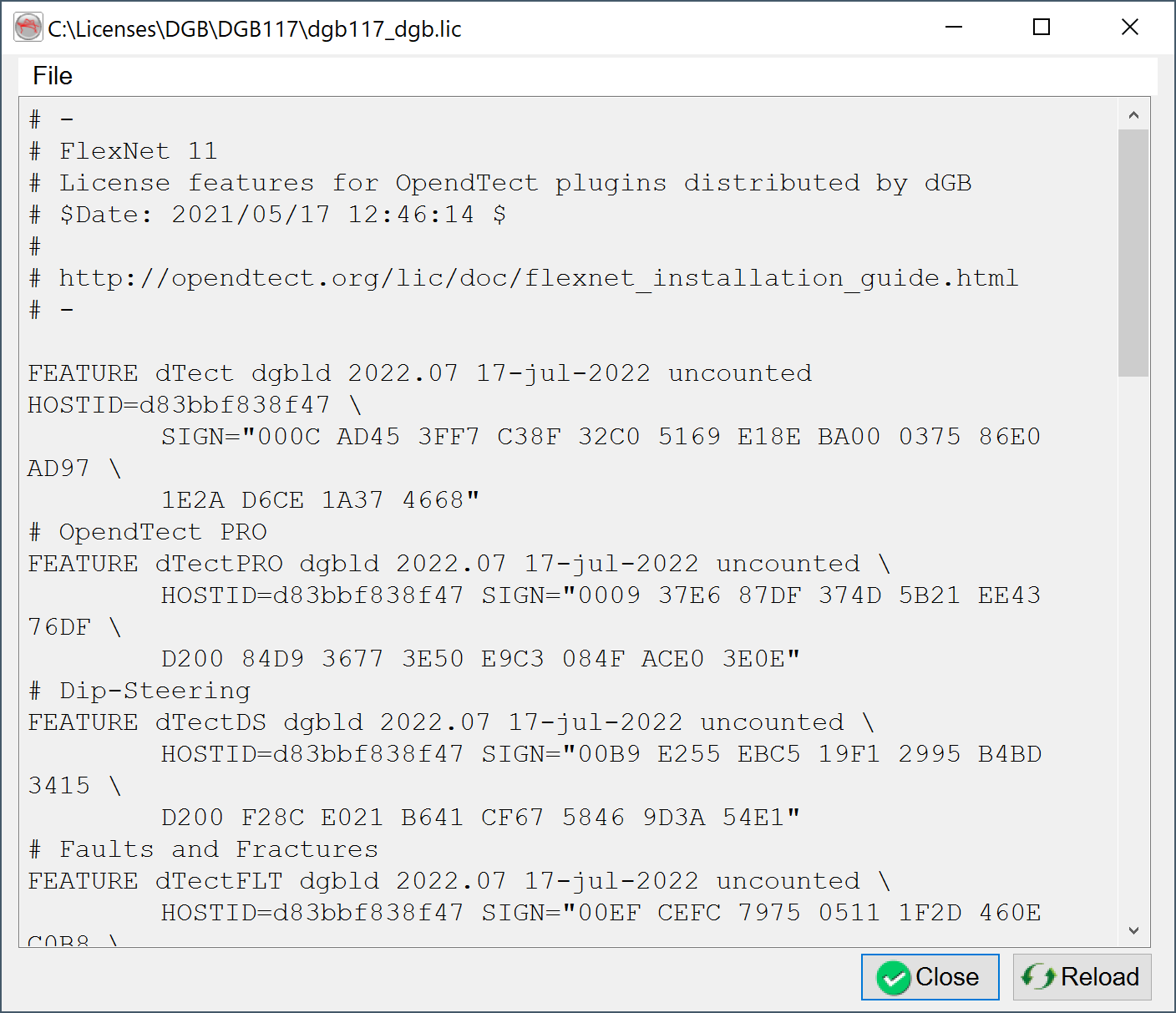
-
Install the license file. On pressing Install, you will see a prompt warning that a restart will be necessary:
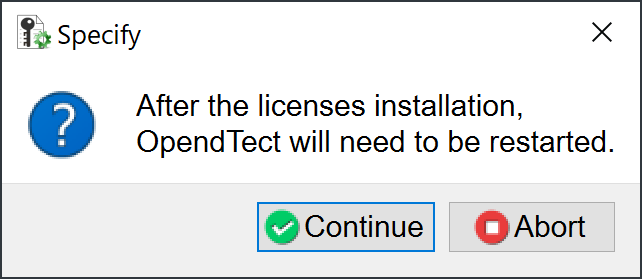
Pressing Continue will complete the installation of the license file and bring up this window:
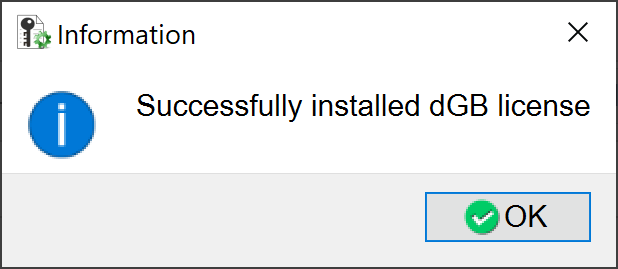
Pressing Continue again will restart OpendTect.
-
Clear the license file. On pressing Clear, you will see a prompt warning that a restart will be necessary:
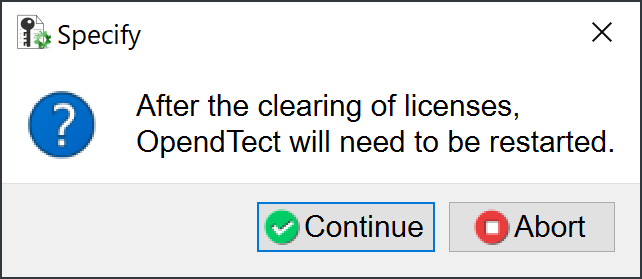
Pressing Continue will complete the clearing of the license file and bring up this window:
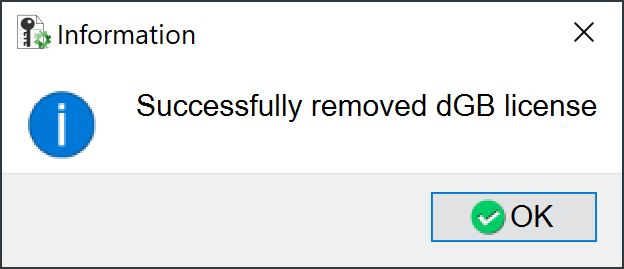
Pressing Continue again will restart OpendTect.
In addition to the core functionality, you may click 'Request Evaluation License' to bring you to the contact page of the dGB website where you can request an evaluation license and/or request a quote.
And, for Windows users only, you may access the 'License Manager Tools' button to pop up the Flexera LM Tools window:
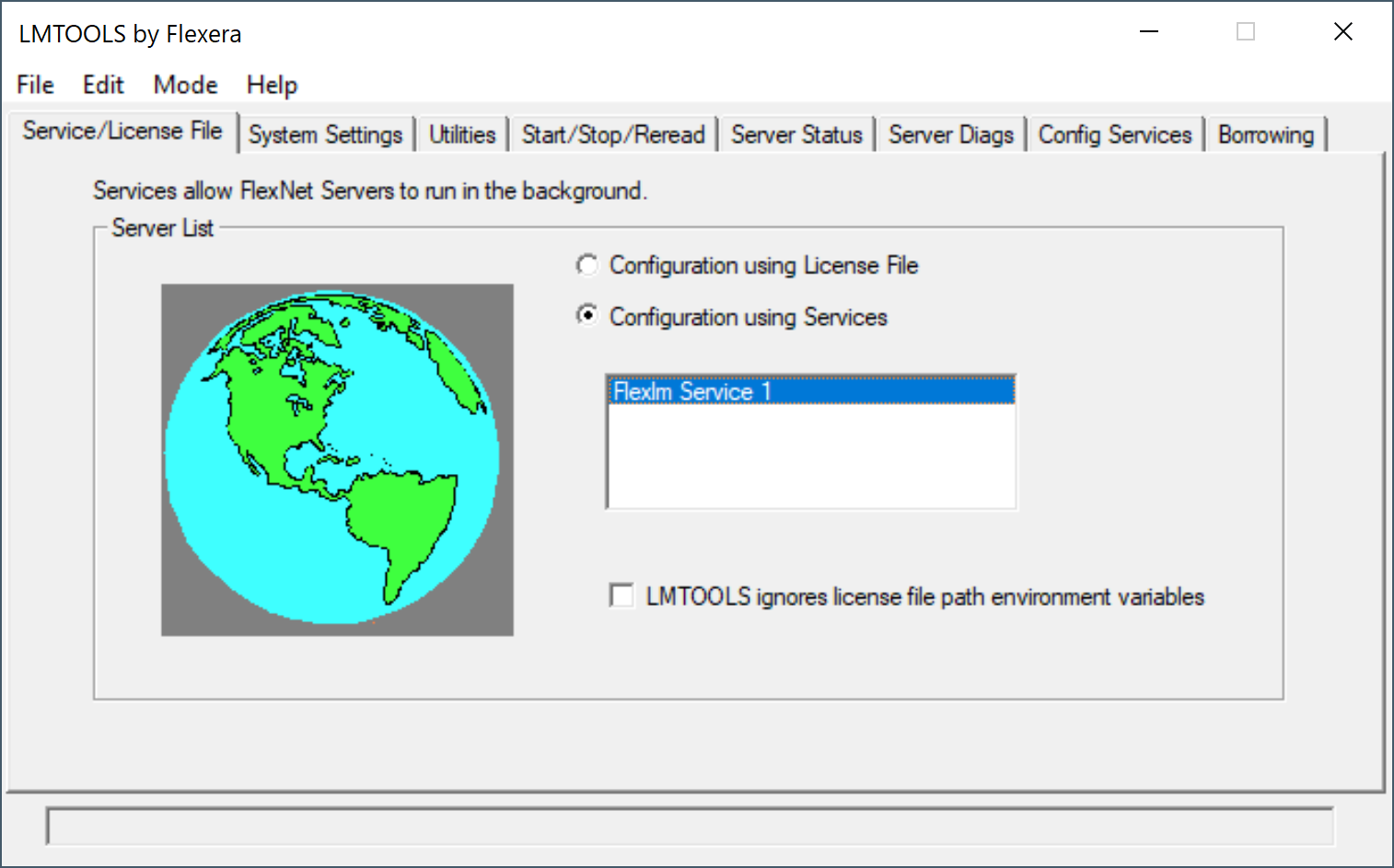
Please note: The method of clearing licenses via OpendTect License Settings will clear the registry entries from the User's profile but not from the System.
So it will clear licenses installed via OpendTect License Settings or licenses installed using DGBLD_LICENSE_FILE as a User (environment) Variable but not if DGBLD_LICENSE_FILE is set as a System Variable.
If DGBLD_LICENSE_FILE is set as a System Variable, it is necessary to use LMTools via Install/Edit Licenses and, on the Config Services tab, use Remove Service.
This will clear the System Variable and the registry setting.