9.1.1 Look and feel
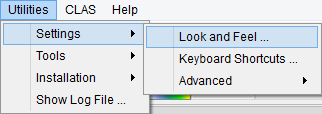
This option brings up an interface containing several tabs for defining various settings in OpendTect:
These are explained in detail below:
General
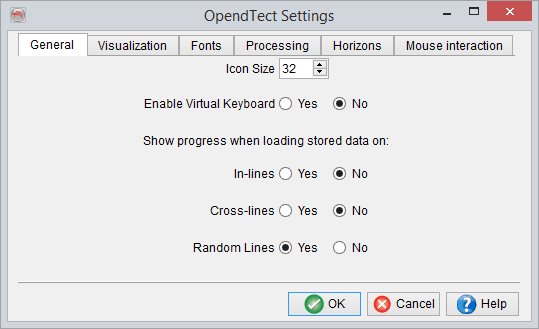
Default Icon Size is 32. For systems with smaller screens (esp. laptops) it may be useful to reduce this value to 28 or even 24. In combination with reduction of Font size, this can prevent windows be 'oversized' for the screen.
Visualization
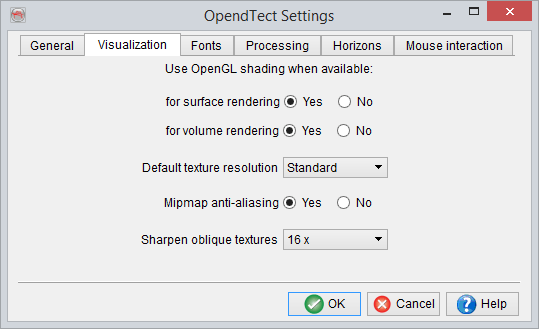
In the visualization tab , you may choose for OpenGL shading, also for volume rendering, or switch off this option.You may also define the texture resolution factor to one of these three settings:
Users facing data visualization issues may significantly improve their results by turning off the shading and setting the resolution to Standard.
Fonts
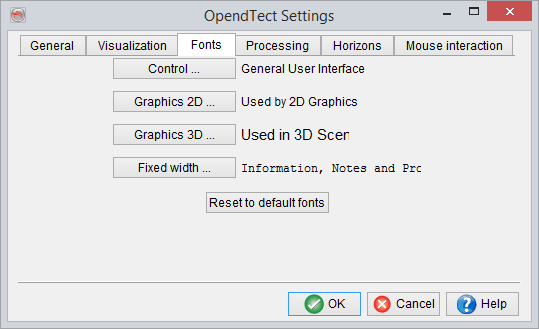
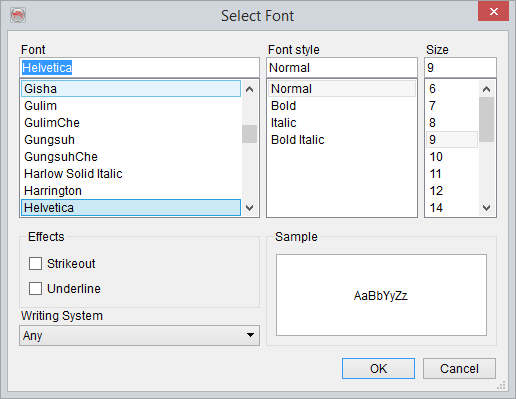
Clicking on any of the listed buttons brings up a standard font definition window:
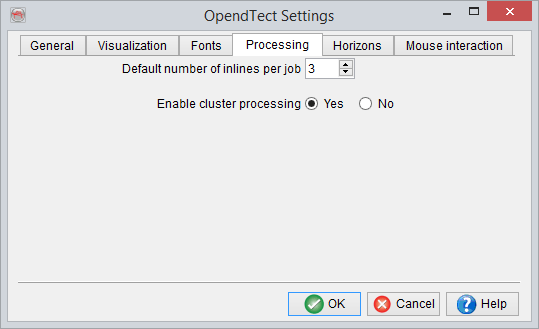
Please see the following sections for full details of Batch Processing and Cluster Processing.
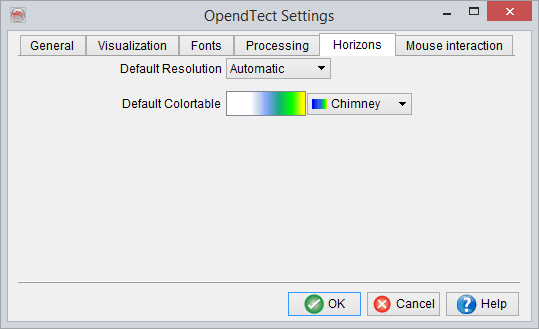
Using this option, one may set both the default resolution and default colortable for horizons. This is an especially helpful option for orientation in the early stages of a project when many horizons are loaded.
As with many of the other settings, a restart is required to apply these defaults.
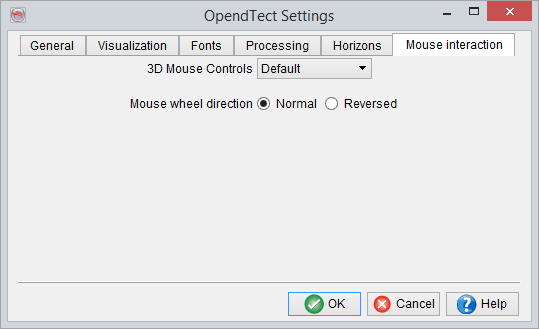
The mouse buttons can be set differently. System administrators can implement user-defined mouse button actions.