Setup Distributed Computing
In order to utilize OpendTect's capability for Multi-Machine Processing (MMP), a BatchHosts file must be created and used. This file contains the list of remote machines (host machines or nodes) and some relevant details about these machines and the path to the Survey Data Root. OpendTect will use this file to communicate to the remote hosts and launch processes remotely on them. Follow the example format (shown below) to add the list of remote machines and their details in the respective fields.
In order to minimize complications, the Setup Distributed Computing tool (formerly known as Setup Batch Processing tool) can be used to create a tailor-made BatchHosts file (via Utilities > Installation > Setup Distributed Computing...).
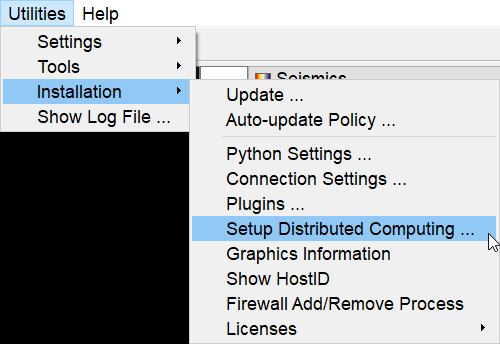
Figure: Launching Setup Distributed Computing tool
As default OpendTect will try to create a new or edit the existing BatchHosts file in it's 7.0.0/data directory. If this directory is not writable OpendTect will advise to launch this process with administrator rights.
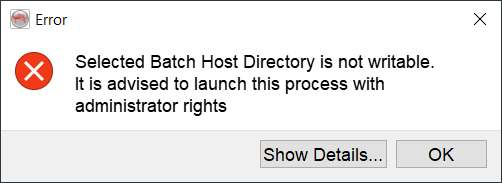
Figure: Selected Batch Host Directory is not writable
It is also possible to use a custom BatchHosts filepath by setting environment variable DTECT_BATCH_HOSTS_FILEPATH .
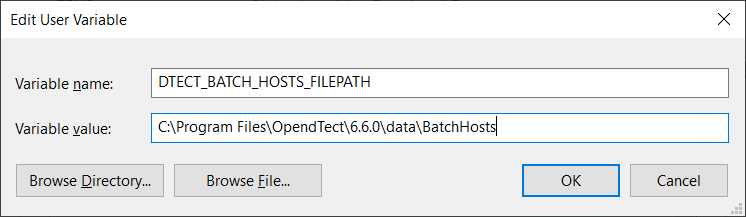
Figure: Setting DTECT_BATCH_HOSTS_FILEPATH environment variable
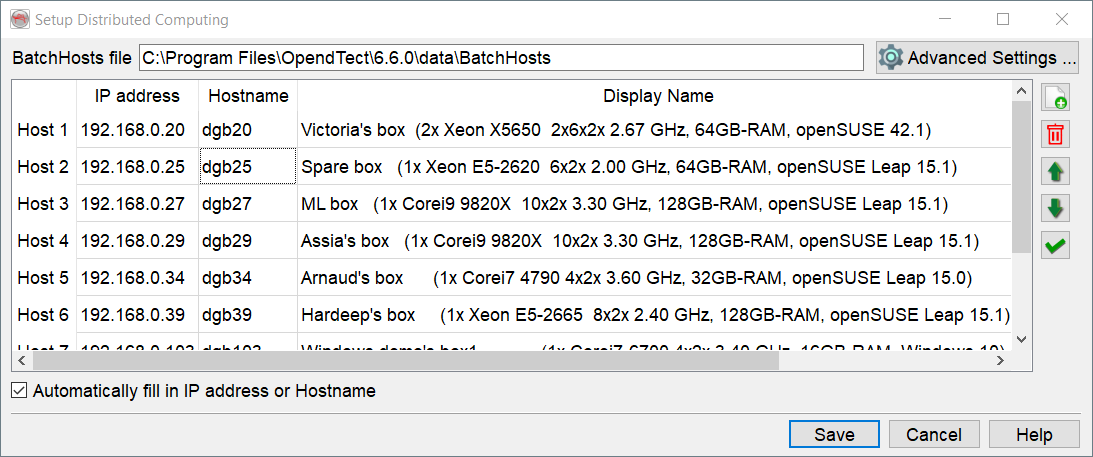
Figure: Setup Distributed Computing window
BatchHosts file: This field is not editable in the User Interface.
IP address: IP address of the node machine(s). If the background of this field is in red then there is a problem with the resolving of the hostname into the IP address.
Hostname: Hostname of the node machine(s). If the background of this field is in red then there is a problem with the resolving of the hostname.
Display name: Free-text field. Text entered here appears in the Distributed Computing window.
Platform: Select platform type, the options are: Linux (64 bits), Windows (32 bits), Windows (64 bits) and Mac OS X.
Survey data root: Location of the survey (the path to the survey data root folder
from the host machine)
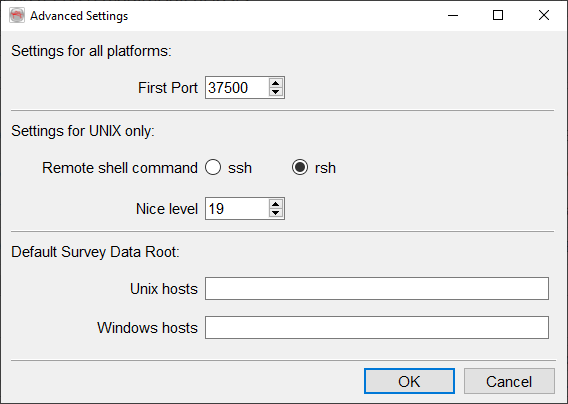
Figure: Advanced Settings window
Advanced Settings:
- Here you may change the first port value (in the case that it is blocked or in use). By default this first TCP port is 37500. We advise to open up to 5 ports, e.g. 37500-37504.
- Linux users may decide to change the remote shell command from the default ssh to rsh.
When setting to ssh it is required that the user who is running OpendTect is able to login to the other nodes without a password. This can be done by setting up public key authentication between the nodes. We will not go into detail of how to do this. In short this is done by generating the SSH key on the machine you are using to start the jobs, the public key then needs to be uploaded to the nodes and added to the user's .ssh/authorized_keys file. - The Nice level sets the priority on the host machines, 19 being nicest and 1 being least nice).
- Finally, the Default Data Root can be set per platform.
Description of icons:
 Add new host.
 Remove selected host.

 Move host up or down.
 Test hosts. Will perform tests to ensure that the server and nodes can communicate to the necessary extent to perform the MMP. (ie: can the nodes find the data root folder and read/write into it)
Tips & tricks
In case you are having issues with the Distributed Computing between the server that launches the scheduler and the nodes please check the following:
-
Can you ssh into the node(s) without having to type a password? e.g. run: ssh nodehostname ls -la
-
Can you the access the data project on the node(s)? e.g. run: ssh nodehostname ls -la /pathto/dataproject
-
Can you access OpendTect on the node(s)? e.g. run: ssh nodehostname ls -la /pathto/opendtect
-
When you run the scheduler is it listening on the port you set in the BatchHosts file? e.g. run: netstat -antpu | grep 37500
-
Is their a time difference on the server that is starting the scheduler and node(s)? It is a good idea to sync them via a ntp server.
-
Is the hostname resolution correct? Do the nodes get the correct IP address to which they need to connect?
For more information on this topic, please refer to OpendTect's Youtube Channel and the dgbes.com resources videos page where you may find the webinar: Multi-Machine Processing Setup.