8.4 Profile Modeling
The profile modeling is used to create pseudowells by interpolating well logs between control points. The control points are inserted from real wells loaded in the project, with well-log data upscaled/blocked into layers of user-defined size, or added as control profiles during the modeling.
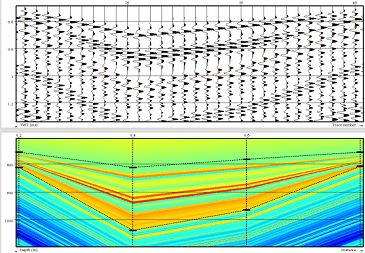
The modeling is performed in two steps by adding the control points and modifying the model parameters . An output example is given below. The modeling itself takes place in the bottom part of Layer modeling window. The modeling description can be saved, while interpolated pseudowells are not saved along with it. The pseudowells can be either dumped to a text file, or the corresponding data can be extracted using the crossplot extractor. The pseudowells are re-drawn by pressing on button. The number on the left of button defines the number of pseudowells to be created. It is advised to start with a relatively low number while building the model, and then increase it for the final application (several hundreds for a HitCube inversion are needed).
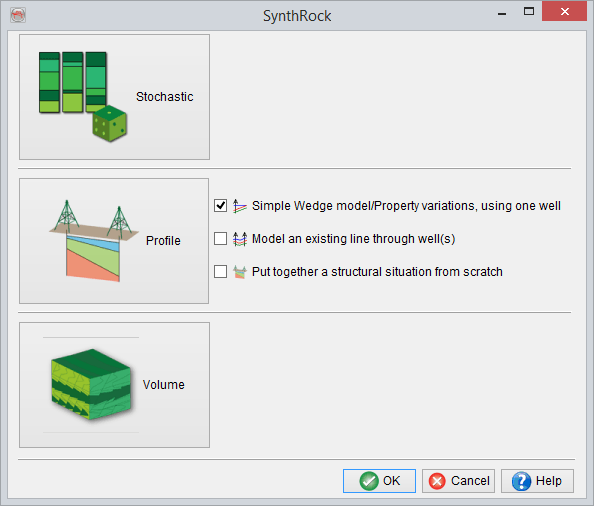
Profile modeling offers three options to start modeling
Simple Wedge model/Property variations, using one well and Model an existing line through well(s) are two pre-defined workflows that allow user to quickly set up most commonly used models. These workflows are pre-defined in a sense that a user is guided through the required sequence of windows by the software. They allow to build simple models much faster than doing so from scratch. Once a simple model is built, further modeling can be continued using the classic Profile mode functionality in the Layer modeling window.
Note, that some windows in the pre-defined workflows are unique and might not be accessible from Layer modeling window if accidentally closed by a user. In such case, a user either have to continue in the Layer modeling window with the classic Profile mode functionality, which allows to do the same things but requires more user input, or start the pre-defined workflow again.
The third option, the classic Profile mode, is accessable either by clicking on the large Profile icon or by selecting Put together a structural situation from scratch option and clicking OK.