3.15 Annotations
With this option, you can draw arrows, load images, and write text on the display window by right clicking in one of the items in this tree.
Arrow: You can add new arrow groups, change the properties, lock-unlock, and remove them by right clicking on this element.
Once you have added a new arrow group, named it and saved it, you can now click in the scene to add arrows (CTRL+left-click to remove an arrow). The arrow properties can then be changed by right-clicking on the newly inserted arrow group and selecting the properties from the fold-out menu. In the arrow properties, arrow type (top, bottom or both heads), color, width and size are adjusted.
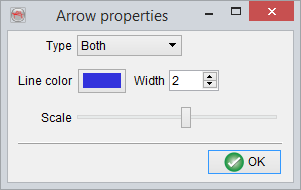
Arrow style properties
Image: Once you have added a new image group, you can click in the scene to add an image (CTRL+left-click to remove an image). It is then possible to store, resize, change image, lock-unlock, and remove it by right clicking on the relevant image group in the tree.
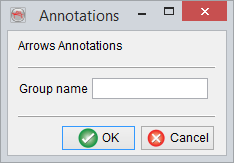
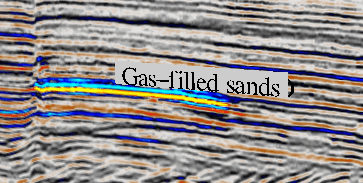
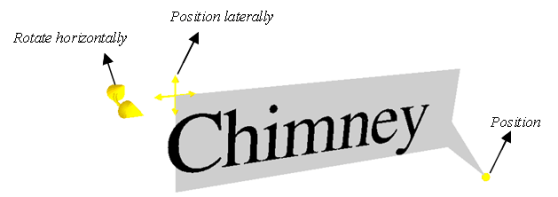
Add a new annotation group and changing the position of the annotation
Text contains two pop-up menus:
- Add Text Group: Adds a blank text group
- Load: It is used to load the stored annotation group(s).
The text group pop-up menu can be launched by right clicking on the text group name.
- Size: Resize the text group. It may be noted that it will resize the all inserted text sub-elements according to the new size.
- Save/Save as: Saves the text group in to an existing name/new name.
- Change Text: it is used to replace/change the text of the selected annotation. It may be noted that in the tree pop-up menu it si inactive. A user can only change the text of a selected annotation. It is done by right-clicking over the annotation in a working scene.
- Background Color: Modifies the background color of the annotation.
- Lock: If lock is selected, it will prevent further modification of the group.
- Remove: It removes the group from the tree/scene.
Scale Bar: Use this option to add a scale bar to an inline, crossline or Z-slice. Once added and saved, right-clicking on this element will also give you the option to change the properties.

For Inlines and Crosslines, this includes the Horizontal or Vertical direction options
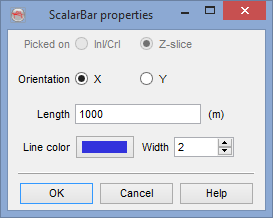
For Z-slices, this includes the X or Y direction option