3.7.10 Other Options
Properties: The Material window allows changing of the graphical settings like transparency, line style, and thickness.
Resolution: The resolution of a horizon can be changed for performance reasons. When using a low-end graphics card, performance during rotating and moving the scene may suffer. By showing the horizons in a lower resolution, scrolling and rotating becomes smoother. By default, the resolution is set to Automatic. This setting uses higher resolution in areas where a horizon has a complicated shape, and low resolution in relatively flat areas. Also, when rotating, the resolution will be set to low in order to enhance responsiveness of the rotation action. When released again, the resolution is set higher again. Attributes displayed will always have full color resolution, only the shape of the horizon surface is affected by this setting.
Horizon default resolution and colortable settings can now be defined under the '
Quick UVQ: This option is related the Neural Network plugin license, if it is available. It is used to create a quick unsupervised facies map. For further information please refer to the plugin documentation.
Use single color: When this option is selected, the horizon is displayed in a single color, which can be chosen from a standard color selection window.
Display: The horizon can be displayed on the sections (inline/crossline/2Dline/timeslice) as a line, as a 3D surface or both.
Tracking: Horizons can be edited and tracked through the survey. The various tracking options are described in
Save: The save option gets highlighted when changes are made to the surface geometry. Save saves the new geometry of the horizon. If a horizon consists of patches, you can save a sub-selection of these patches.
Save as: Save a sub-area or the complete horizon using an other name.
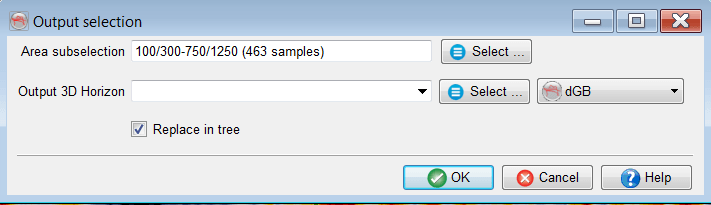
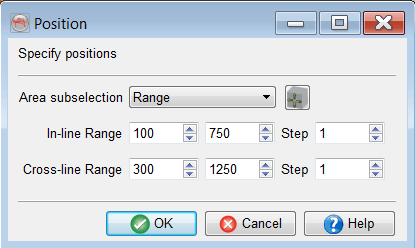
Position: It is used to re-position (selected inline/crossline range) the displayed horizon. In the position dialog, set the ranges of the inline or crossline to sub-select the horizon display.
Lock: This will lock the selected object. It prevents accidental removing, moving, or displaying data on the object. After clicking unlock, all manipulations are possible again.
Remove: This option removes the horizon from the tree and the graphics area.