4.3.7.2 Attributes 3D
This window is used to import grids from ascii files and attached them to Existing 3D horizons. Select the input Ascii file. You may display the input file by pressing the Examine button. The input file should be column sorted with one point per record (line).
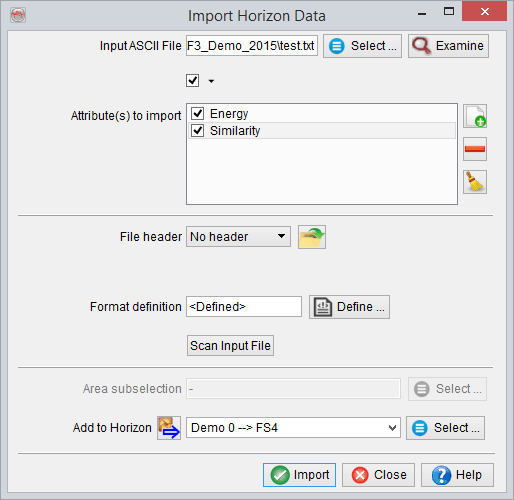
Grid names must first be provided in front of Select Attribute(s) to import. This can be done by pressing Add new right of it, and providing each time a new grid name. This will populate the list of importable grids. Only the highlighted grids will be imported, which is why each new grid is highlighted after providing its name.
Next, the presence of a file header must be specified and the file format definition must be provided. The header, if present, can be of fixed length (number of lines), or delimited on its last line by a keyword.
Predefined and saved file formats are available by pressing the  icon. Otherwise the format must be manually specified. The Define button gives access to the format definition window.
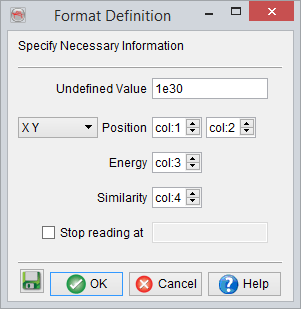
You must specify in the format definition window the column numbers for the position, in terms of an X-Y pair or an inline-crossline pair, and the grid(s) column(s). Grid values that should not be read must all have the same numerical value, which is to be filled in as the Undefined value. Reading may be stopped at a specific line by providing the adequate keyword.
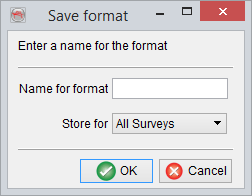
It is recommended to save the format definition for a later use and QC, by clicking on the  icon . In pop-up window, write the name of the format and store it. The format can be stored at different levels (All surveys, Current survey, Current OpendTect user level) depending on the usage. Please note that the full grid names will be saved as provided in the format definition. Press OK when done.
It is highly recommended to scan the input file after providing its format, and prior to the actual import. The scanned information will pop-up and error(s) or warning(s) may suggest a change of the format definition. The area subselection is essentially present to optionally reduce the amount of data to be imported, by reducing the inline/crossline range(s).
Finally an horizon must be provided, to attach the grid(s) to it. Grids will be accessible only after having loaded this horizon in the tree. Press Go to launch the import.