System Python installation for use in OpendTect
It is possible to use a system Python installation in OpendTect. In this scope such a Python installation is not a miniconda or anaconda installation.
Note that this is more complicated than the Internal Python installation. If you have your own miniconda3 or anaconda3 environment you might want to consider to do the Custom Python installation.
In order for OpendTect to use a system Python installation the following things need to be done:
-
Several packages need to be installed with pip, the requirements are listed below
-
Non Python libraries CUDA, cuDNN and HDF5 need to be installed
-
Make sure that PATH is set correctly for Python and the non Python libraries
Supported versions
Currently OpendTect and the Machine Learning plugin support:
-
Python 3.8 and 3.9
-
CUDA Toolkit 11.3
-
cuDNN v8.2.1
-
HDF5 1.12.2
Windows recommendations
-
To check whether Python has been installed open the Command Prompt and run:
where.exe python
If it has been installed it will give the path to python.exe -
For finding out which Python version is installed open the Command Prompt and run:
python --version
-
We recommend to install Python with the Python 3.8 full 64 bits installer or Python 3.9 full 64 bits installer from Python.org Downloads page for Windows. The other options to install Python are from the Microsoft Store and via the Windows Subsystem for Linux (WSL). The reason for not recommending the Microsoft Store package is that it has limitations that make it not suited for a professional development environment.
To make it easier it is recommended to toggle on Add Python 3.8 to PATH before clicking Install Now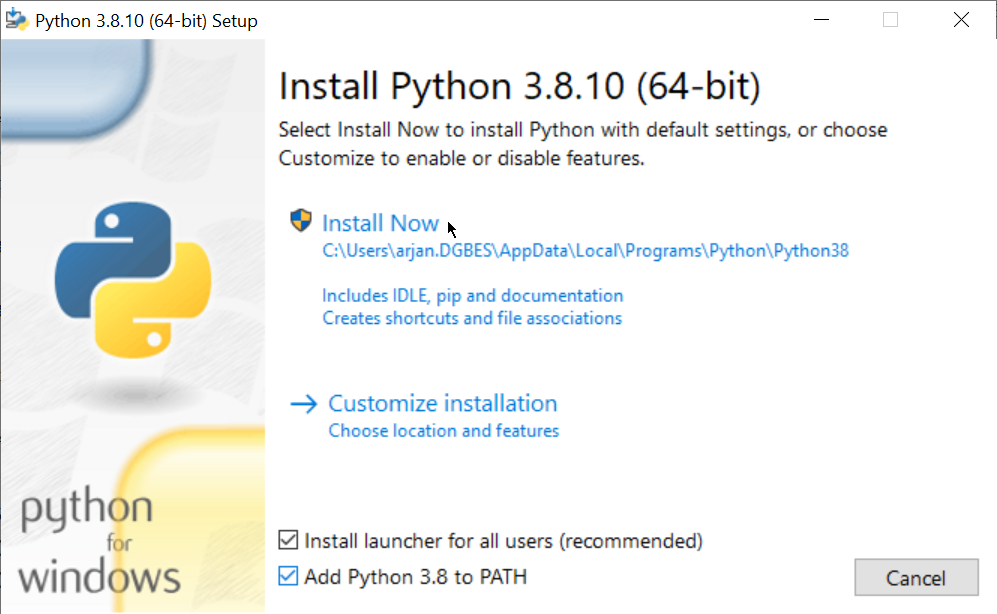
Figure: Install Python 3.8 to the system and add to path -
Up to 6.6.8 we advise to make sure that you toggle off App Installer python.exe and App Installer python3.exe in the App execution aliases settings.
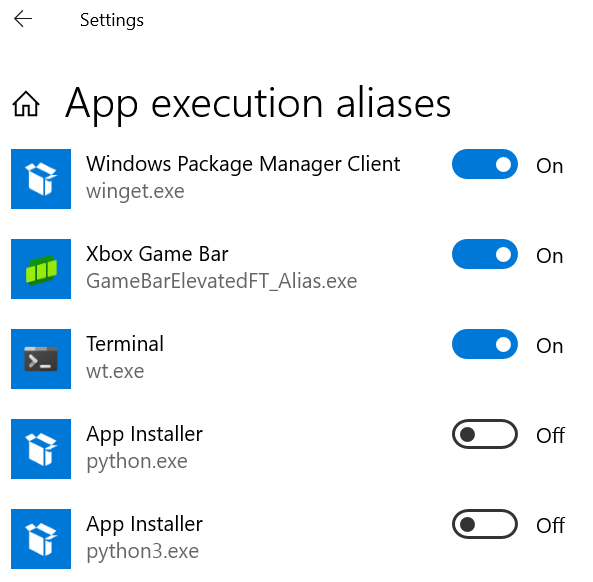
Figure: Settings > Manage app execution aliases
Check whether all paths are set
The paths to the Python and Python Scripts directory should have been set in environment variable Path, e.g:
-
C:\Users\your_username\AppData\Local\Programs\Python\Python38
-
C:\Users\your_username\AppData\Local\Programs\Python\Python38\Scripts
The following paths should be listed in the System Environment Path variable:
-
C:\Program Files\NVIDIA GPU Computing Toolkit\CUDA\v11.3\bin
-
C:\Program Files\NVIDIA GPU Computing Toolkit\CUDA\v11.3\extras\CUPTI\lib64
Please note that this path the CUDA Toolkit installer will not set. It is recommended to set this one manually so that Python can use CUPTI.
-
C:\Program Files\NVIDIA GPU Computing Toolkit\CUDA\v11.3\libnvvp
-
C:\Program Files\HDF_Group\HDF5\1.12.2\bin
-
Optionally a manual path has to be set to the cuDNN libraries if these have not been unzipped into C:\Program Files\NVIDIA GPU Computing Toolkit\CUDA\v11.3
Installations
Installing Python packages with pip
In the OpendTect 6.6.0\data\Python are several requirements.txt files that pip can use to install the required Python packages.
Please note that not all requirements.txt files might be present in your installation. As example: for the machine_learning_requirements.txt to be present the Machine Learning plugin needs to be installed.
The pip installations have to be done via the Command Prompt, Windows PowerShell or Terminal.
First make sure to update pip and install wheel to make your life easier:
python -m pip install --upgrade pip
pip install wheel
Then run to install the basic packages:
pip install -r path_to_OpendTect\6.6.0\data\Python\basic_requirements.txt
To install the Python libraries that are required for OpendTect Pro run:
pip install -r path_to_OpendTect\6.6.0\data\Python\dgbpro_requirements.txt
To install the Python libraries that are required for the presentation maker run:
pip install -r path_to_OpendTect\6.6.0\data\Python\presentation_maker_requirements.txt
To install the Python libraries that are required the Machine Learning plugin run:
pip install -r path_to_OpendTect\6.6.0\data\Python\machine_learning_requirements.txt
To install the Python libraries that are optional for the Machine Learning plugin run:
pip install -r path_to_OpendTect\6.6.0\data\Python\machine_learning_requirements_optional.txt
To install Python libraries that provide Spyder, Jupyter notebook and related libraries run:
pip install -r path_to_OpendTect\6.6.0\data\Python\notebooks_requirements.txt
Installing CUDA Toolkit, cuDNN and HDF5
CUDA Toolkit can be downloaded from the CUDA Toolkit download page. Our advise is to download and install CUDA Toolkit 11.3.
cuDNN can be downloaded from the cuDNN Archive. Our advise is to download cuDNN v8.2.1 (June 7th, 2021), for CUDA 11.x.
An easy way to install is to unzip the downloaded zip-file's CUDA folder content into the path C:\Program Files\NVIDIA GPU Computing Toolkit\CUDA\v11.3
When unzipping into another folder an extra step will need to be done by adding PATH to the cuDNN libraries.
HDF5 can be downloaded from the hdfgroup.org downloads page. Our advise is to download and install HDF5 1.12.2.
Use the system Python environment in OpendTect
To use the system Python environment select System as Python environment in the Set Python settings window. When the system Python has been successfully installed the Test button should give the list of Python packages that are available in the system Python environment.
Up to 6.6.8 the Test and other buttons inside the Set Python settings window may give the below error. If that happens we suggest that you first check whether App Installer python.exe and App Installer python3.exe in the App execution aliases settings are toggled on. If so then toggle them off and run the test again.

Figure: Error cannot detect Python version: Microsoft Store / disable shortcut