3.14 Pre-Stack 3D Viewer
Prestack gather selection from the tree
Prestack (PS) gathers can be displayed in the 3D scene, perpendicular to an inline or crossline. Post stack data must first be displayed on an inline/crossline. The poststack data does not need to be linked to the prestack data. Once the line is loaded, go to interact mode (graphical toolbar, second icon from the left), right-click in the scene your inline and use the option Display PS gather. The menu will list any prestack data available (loaded) in the survey. Please note that multiple PS gathers can be displayed on the same inline, and moving the inline to another position will keep the position of the PS gather and update its content.
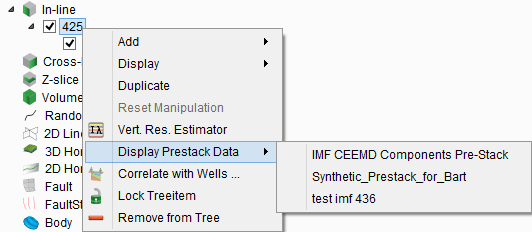
Right-click menu of a vertical slice tree item when prestack datasets are available.
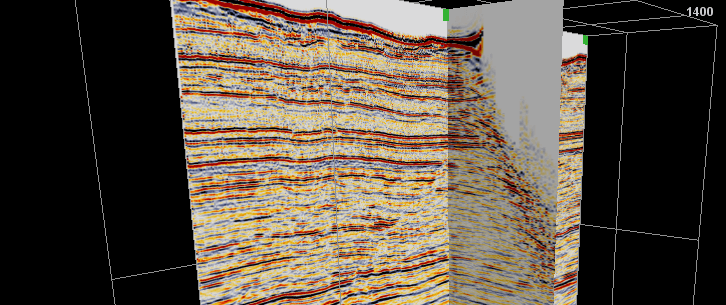
Poststack data on an inline (left) with a prestack gather displayed perpendicular to it.
Positioning the prestack gather
When a prestack data is displayed in a scene, the prestack positioning window also pop-ups (look at the corners of the screen). By using this window, the prestack data can be scrolled interactively. The crossline value locates the currently-displayed prestack panel. That can be scrolled at given steps (increment). You can use either the arrows or the mouse wheel over the inline/crossline value.
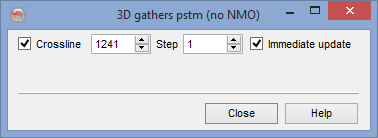
Right-click options for a prestack dataset
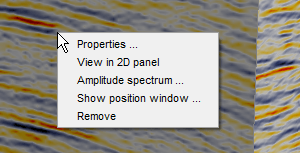
Right-click menu on the prestack gather display to open it in the prestack 2D viewer.
Properties
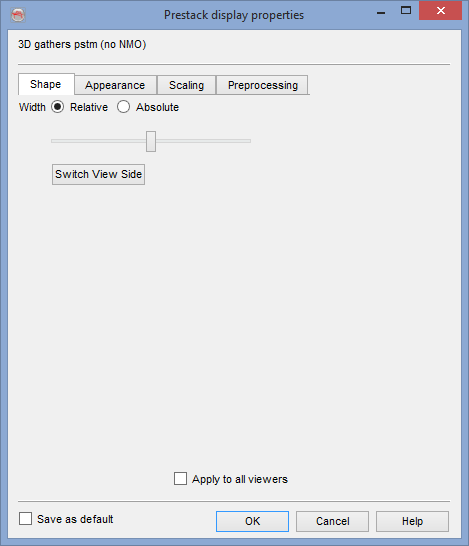
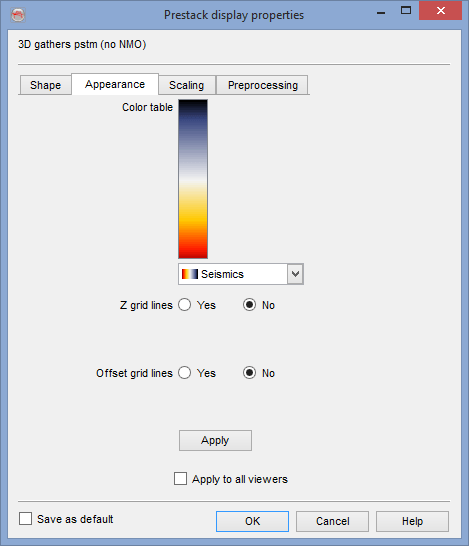
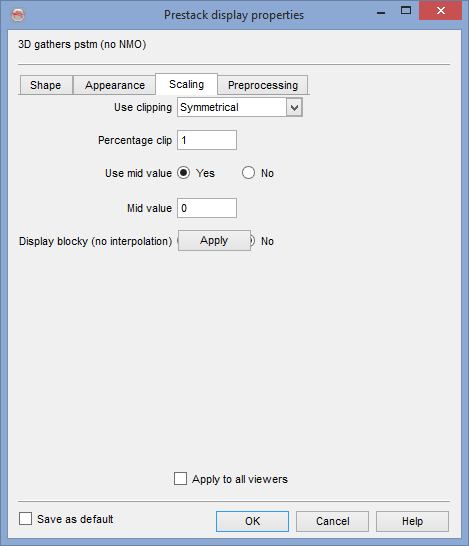
There are several display properties available that are described below. Please note that the gathers are first displayed without any processing. This can be set together with other properties in the PS gather display properties:
- Shape: The shape tab will set the size of the gather with respect to other 3D elements and its relative position
- Appearance: Color bar, amplitude ranges and grid lines can be set in this tab.
- Scaling: This tab is used to scale (clip) the amplitude range of the displayed data.
- Preprocessing: Pre-processing may be applied to enhance the display. The available algorithms are presented in the

Resolution: Interpolates the data to get a better display (consumes more memory).
View in 2D panel: Transfer this dataset to view it in the
Amplitude spectrum: Display the average frequency spectrum of the trace of that gather, for the displayed Z range.