Setup Python Settings
For information about the Python environments and how to install them please see the following chapters:
Setup a Custom Python environment
To use the environment that has been installed with the YAML file or if you have set a custom Python environment in some other way, please do the following:
-
Start OpendTect 6.6
-
From the menu choose Utilities > Installation > Python Settings
-
Set Python environment to Custom
-
As Custom environment root choose the root directory of your own miniconda3 or anaconda3 installation, e.g. C:\ProgramData\Anaconda3.
-
With anaconda3 it is possible to install the environments into a different path than the root directory. From OpendTect 6.6.3 and onwards OpendTect will allow this by reading out the paths from %UserProfile%\.conda\environments.txt on Windows or $HOME/.conda/environments.txt on Linux.
-
As Virtual environment choose odmlpython-cpu-mkl or odmlpython-cuda113. The virtual environments are shown as full paths when they have been read from the environments.txt file.
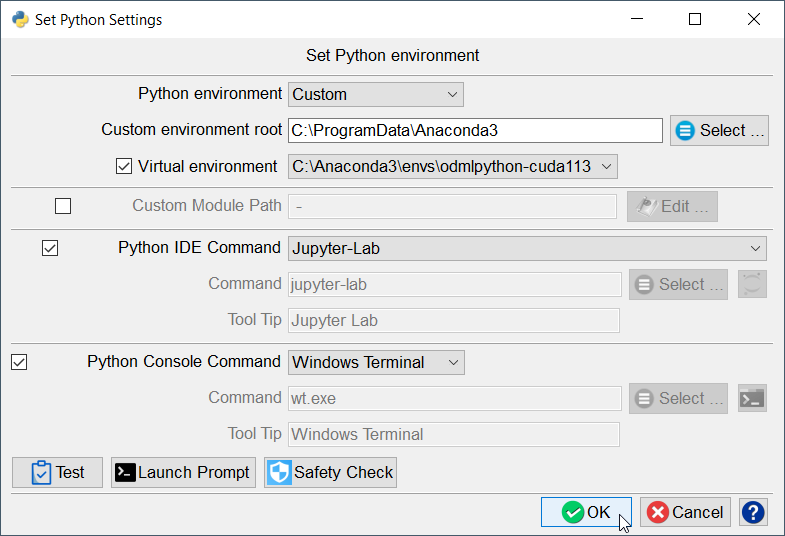
Figure: Set Python Settings window with a selected custom Python environment -
If you want to use a Python IDE you can choose Jupyter-Lab, Jupyter-Notebook, Spyder or Idle that come with the environment or choose your own IDE.
-
Press OK to save the Python settings.