5.1.1 Attribute Set Window
The attribute set window contains a set of seismic attributes definitions to be evaluated/calculated. While defining the attributes it is possible to work in the active scene. Attributes can also be calculated after saving the attribute set. In broad sense following workflows are applicable in OpendTect attribute calculation process (on sections and horizons):
- Evaluate attribute
- On-the-fly attribute calculation
- Creating an attribute output (2D/3D)
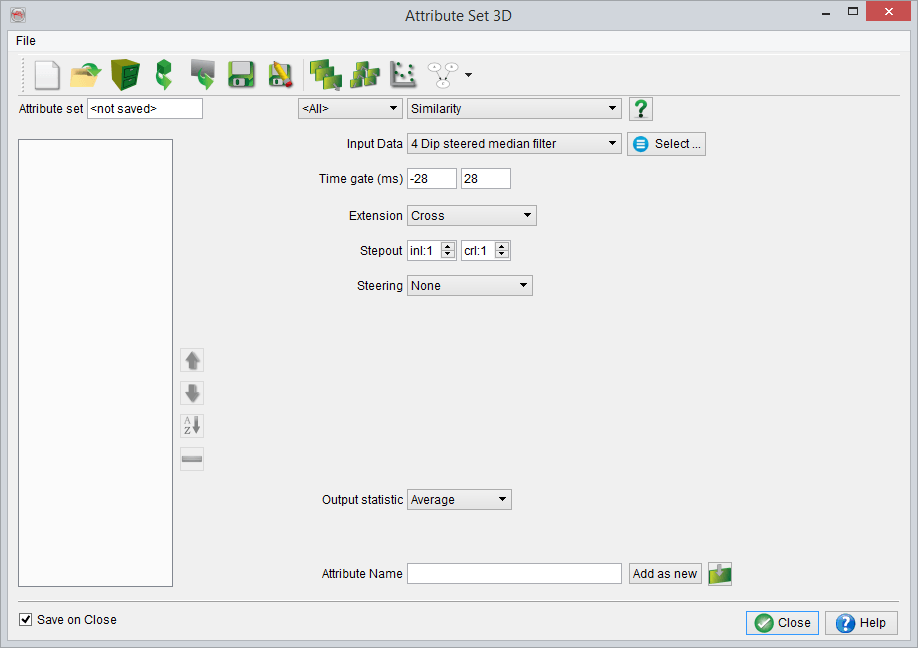
In following figure, different attributes are defined as an attribute set. It is considered as a routine practice in OpendTect environment (especially to define a meta-attribute). These attributes can be: evaluated on sections and horizons, applied on-the-fly and created as an output attribute. Importantly, some attributes show steering selection in the input parameter settings : the dip steering plugin created by dGB provides various advanced steered attributes.
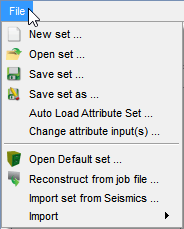
OpendTect works with the concept of an "active" attribute set. At start-up, there is no active attribute set. To create a new one (New set...), or to select an existing set (Open set ...) , select the corresponding option from the File menu (See below). OpendTect is also delivered with a collection of default attribute sets for some general testing (Fault, Chimney,Salt default attribute sets). This set can be selected from the Default set option under the File menu. To use a default set, the input seismic data and a SteeringCube (if steered attributes are available in the default set) have to be selected.
Clicking any attribute in the list will show its parameter settings. Notice that OpendTect uses SI units. For details on each of the attributes see Appendix A. Note that some of the parameter options depend on whether you are using 2D or 3D data as input. For example, the inline and crossline stepout field will be replaced by a single trace stepout field. Generally, an attribute set can only contain 2D attributes or only 3D attributes. Mixed attribute sets are not possible.
When parameters of an attribute are updated, the modified attribute can be added to the attribute set with a new Attribute name by clicking Add as new. Clicking on any other attribute in the list means that the updated parameters are accepted, while keeping the original attribute name. The Revert changes button only reverts changes to the original state before clicking on another attribute in the set. When Ok is pressed, the (updated) attribute set becomes the "active" attribute set. The attribute set is saved to disk when Save on Ok is ticked. To save an attribute set under a different name, use the corresponding option under the File menu.
 Allows for the creation of a new attribute set
 Open an existing attribute set
 Open one of the default attribute sets (provided within the OpendTect package)
 Import an attribute set from another survey
 Reconstruct an attribute set from file
 Save the attribute set
 Save as...
 Re-display the element with the current attribute
 Evaluate the attribute (parameters)
 Cross-evaluate attribute (parameters)

File - Change input... can be used to change the input data of all attributes in the "active" set simultaneously, which is useful in case, for example, a new seismic volume has become available.
File - Auto Load Attribute Set ...
It is now possible to have an attribute set already open at start up using the " Auto load Attribute Set " option in the File menu. This enables to choose the attribute set which will be active the next time the survey is opened.