3.3 Volume
A volume can be added by clicking on Volume element in the tree and selecting Add option. A small volume box with blank attribute is added to the scene. An attribute in the newly inserted volume can be displayed by right clicking on the volume and selecting the Select Attribute option. This works similar to
You can display either the stored volumes or calculate the attribute within the sub-volume. For faster response times,
The pop-up menu for the Volume element resembles that described in the previous section for
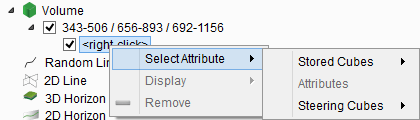
Select Attribute: Select/change the data in a volume.
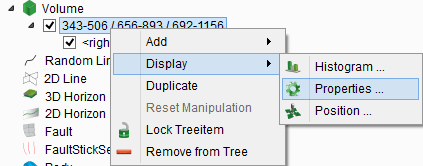
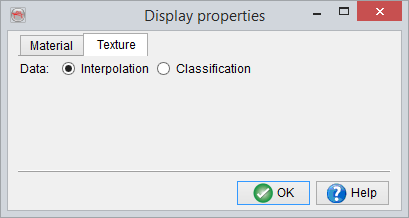
Properties: Change display parameters such as transparency and ambiance reflectivity:
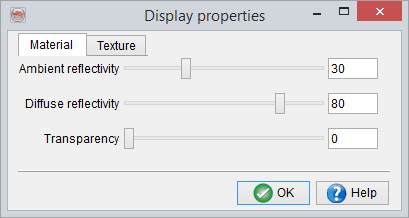
Add isosurface: Compute arbitrary iso value surfaces and convert them into bodies.
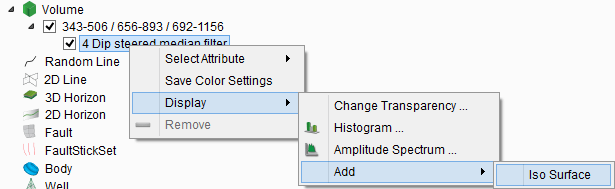
If the option Add > Iso surface is selected, the following window pops up with choice of modes:
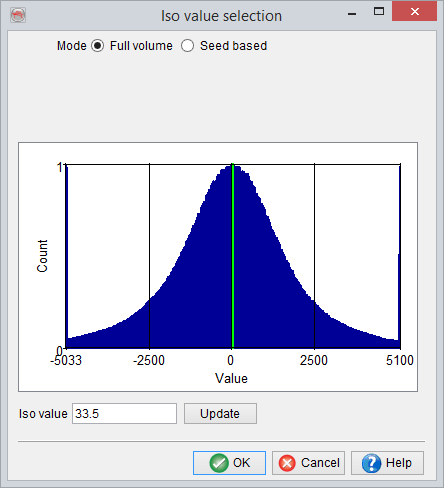
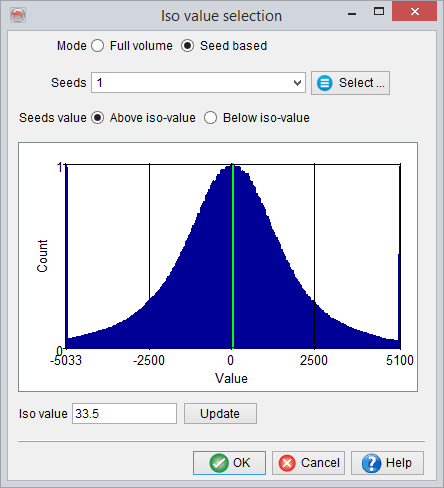
The window displays the histogram of the data collected within the loaded volume (left), or from seeds only that are stored in a pointset (right). "Update" will update the display in the 3D scene (requires some computation time) while leaving the window open. OK will accept the currently selected (or updated) value and dismiss the selection window.
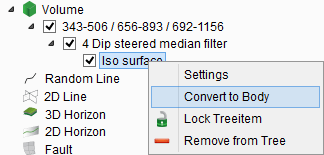
Right-click to display the iso surface menu and convert the iso surface into a stored body that in turn can be retrieved:
- Amplitude Spectrum: Pop-up amplitude vs frequency plot.
- Histogram: Display data statistics (selected attribute) of defined volume as histogram in pop up window.
- Position: Change the inl/xline/Z position within the survey boundaries.
- Duplicate: Create a duplicate/copy of the sub-volume.
- Reset Manipulation: Reset the changes made in the position of the sub-volume. This option is only available if the user has made any changes.
- Save color settings: Save the color settings.
- Lock: "Lock" option with lock the selected object, this will prevent accidental removing, moving or displaying of data on the object. After clicking "unlock" editing is enabled again.
- Remove: This will removes the element from the display.
In Interact mode, (see