4.1.2 New Survey Window
To launch the survey setup window select New in survey selection window. The following window will appear on your screen:
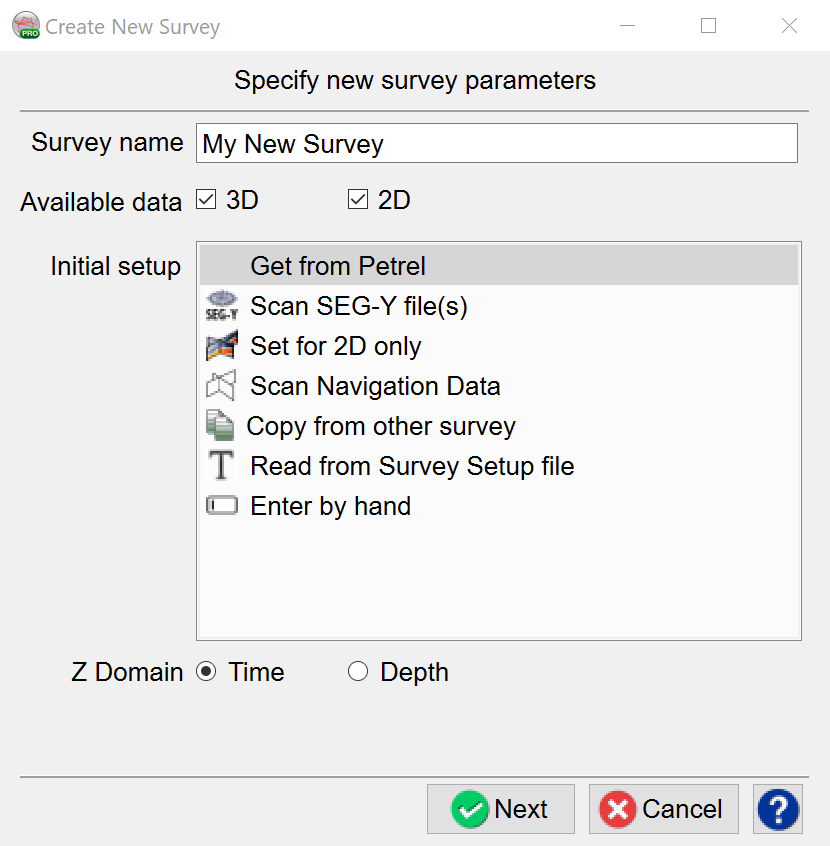
Survey name: In the text area specify the OpendTect survey name.
Available data: Toggle on the data type(s) to be included in the survey (2D only, 3D only or both 2D and 3D)
Note: Selection type here affects the tree structure and what functions are available to you in the survey. Select only 3D, if the survey contains only 3D type data set. Select both 2D and 3D, if the survey contains both 2D and 3D type data set. If the survey contains only 2D type data set, select only 2D.
Initial setup: Determines how you set up the survey ranges and coordinates:
Get from Petrel: This option is only available in the Pro version of OpendTect (visit the dGB ProStore for more details)
Scan SEG-Y file(s): takes you to the
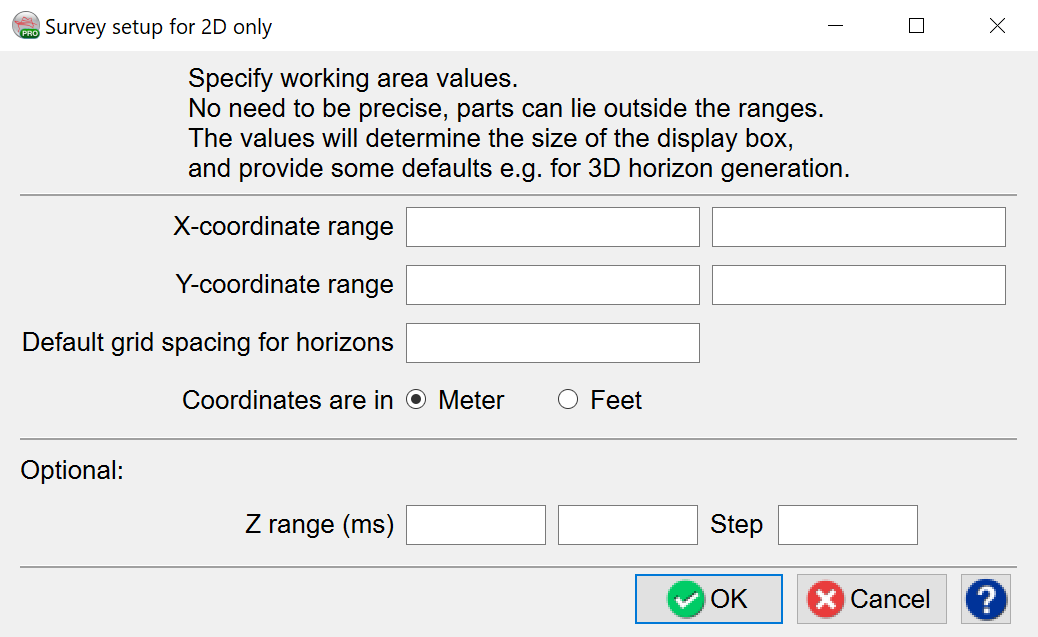
Set for 2D only: takes you to the following window where you can enter the working area values:
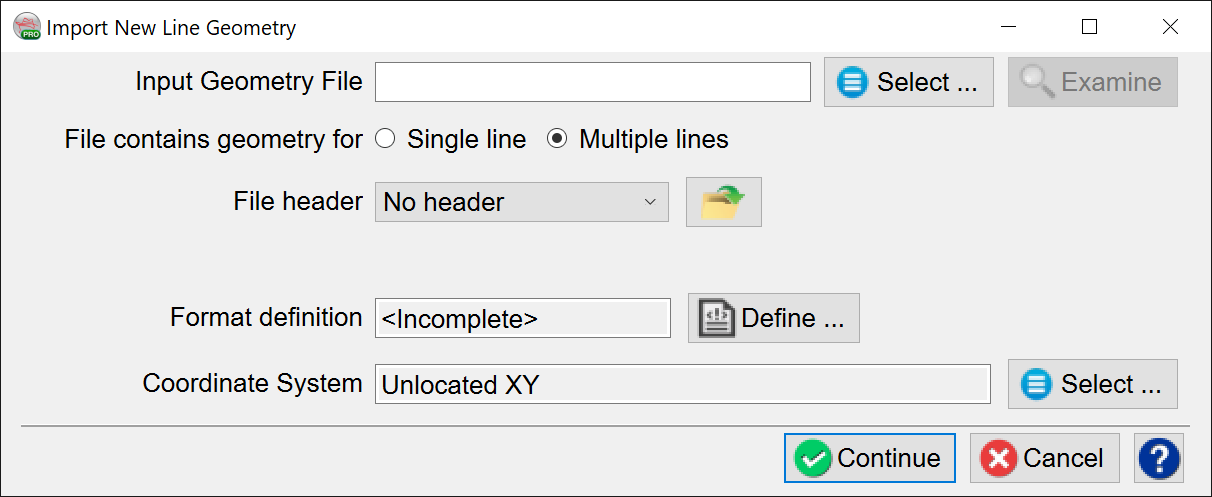
Scan Navigation Data:allows for the import of a (2D) Geometry file. Choice of single or multiple lines, and selection of the Coordinate Reference System:
Copy from other survey: allows you to copy the survey setup from another survey on your drive or network.
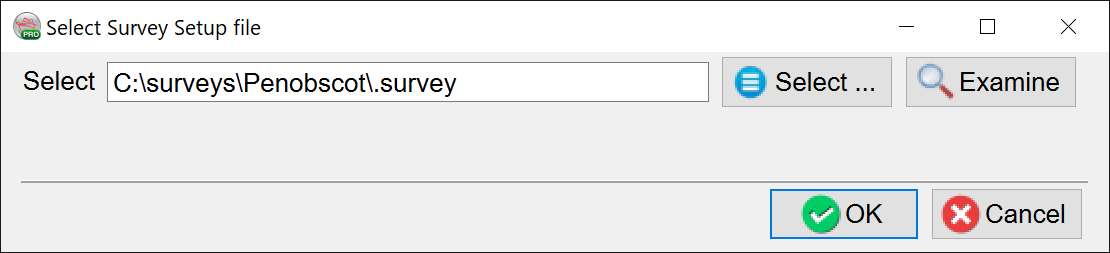
Read from Survey Setup file: copy the survey parameters from another survey using the Survey Setup file (.survey):
Enter by hand: enter the values manually (see