2.2.3 Graphics Toolbar

From the graphics toolbar you can start processes to manipulate the 3D graphics window. The following options are available:
 When this icon is visible, you are in
  .
.
 When this icon is visible, you are in
View Mode is a relic from the past. It is expected to disappear in future releases because as of v6 rotate, pan and zoom are available in all modes (Position, View, Interpretation) as Middle-Mouse operations, see:
 Resets the view to the position that was saved when you pressed the "save home position" icon, one below.
 Saves the current view as the home position that can be recalled with the previous icon
 Allows to reset the view such that all data are visible.
 Toggles the view between orthographic and perspective view.
 Use this icon to set the scene orientation to a particular 'standard' direction. Options include 'View Inline', 'View Crossline', 'View Z', 'View North' and 'View North Z'
 Will open the
 The display rotation axis is used to show/hide the N-E-Z (North-East-Z) orientation arrows.
 Toggles the colorbar on and off.
 Opens the
 Sets the selection to polygon or rectangular modes and allows the user to select an area (or elements within an area, i.e faults sticks...)
 For removal / deletion of selected elements.
 Displays selected element only. When more than one element is displayed in the tree, one can quickly view a single element and toggle between elements by clicking the different elements in the tree.
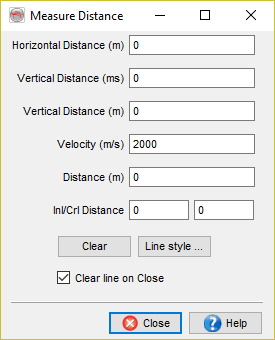
 Tool to measure distances by drawing a polyline on an inline / crossline or on a Z-slice. The tool returns horizontal distance (meters or feet), vertical distance (ms in time survey or meter / feet in depth survey) and the inline or crossline distance respectively. For time surveys the vertical distance is computed with a user-specified constant velocity.