4.4.4.1 Export Ascii 3D Horizons
3D horizons (surfaces) can be exported as ASCII files via Survey > Export > Horizons > ASCII 3D...
In the Export Horizon window: select a 3D horizon; optionally include available Calculated attributes; specify the output format; type an output file name (to save to Survey Data Root folder) or provide a full path by clicking Select; and press Export.
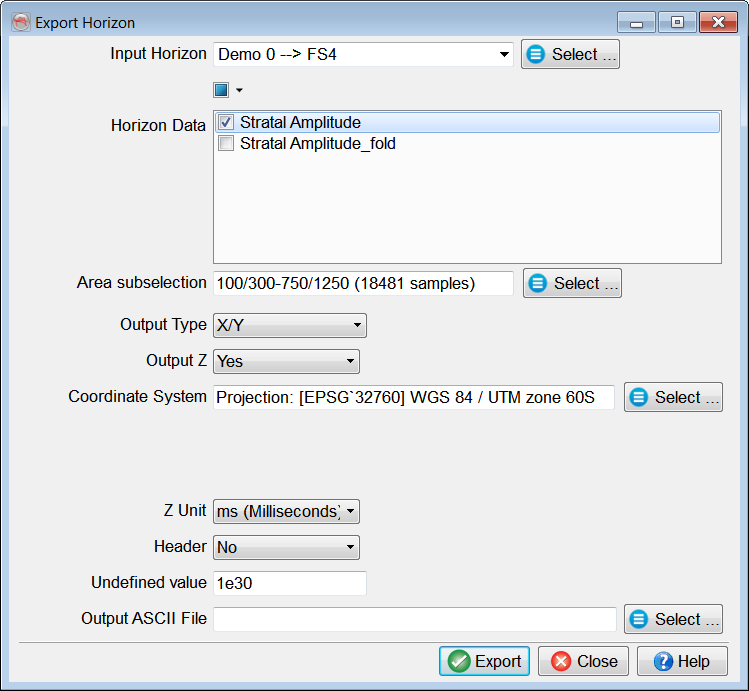
A successful export is confirmed with a message, and the export window stays open to export more horizons.
Output Format options.
Calculated attributes: one or more attributes from the stored horizon data can be exported along with a horizon.
Horizon data can be created via Processing > Create Horizon Output, or an attribute calculated on-the-fly on a horizon in the 3D scene can be Saved as Horizon Data. More information about calculating attributes in OpendTect can be found here.
Use Manage 3D Horizons window to manage stored horizon data.
Output Type:
- default OpendTect horizon export format: based on either X/Y or Inl/Crl coordinates;
Column 1: X or Inline; Column 2: Y or Crossline: Column 3: Z in user-specified units (if Output Z is Yes or Transformed) or the first selected item in the Calculated attributes list (if Output Z is No); followed by other selected items in the Calculated attributes list.
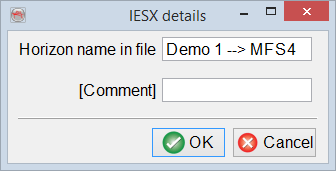
- pre-defined GeoFrame IESX (3d_ci7m) format: Settings button appears and allows to change Horizon name in file and add Comment.
Output Z: available if the Output Type is set to either X/Y or Inl/Crl.
- Yes: by default Z is written to the output file in Z Unit specified by a user;
- No: this option can be used when exporting attribute grids only;
- Transformed: allows domain conversion based on one of the following:
Coordinate System: select a coordinate system of the output file (the option is available only if the current survey has a defined projection based coordinate system).
Header: available if the Output Type is set to either X/Y or Inl/Crl.
- No: no header is written to the file by default;
- Single line: the 1st line contains column names, the 2nd line is a separator, while data starts from the 3rd line only;
- Multi line: column names are listed in the individual lines followed by a separating line.